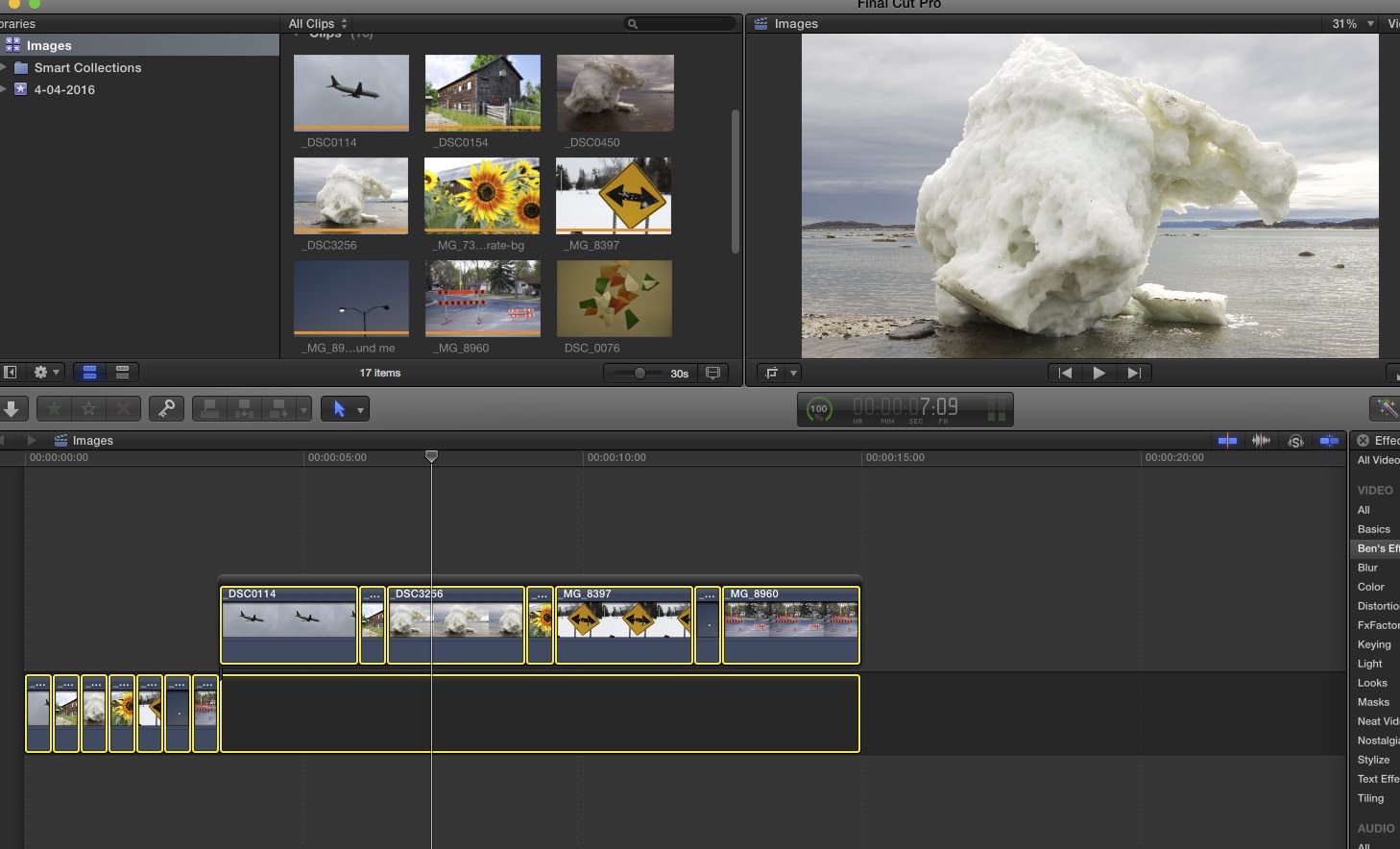
This tutorial will work in Final Cut Pro X 10.2, 10.3 or 10.4. Just follow the steps below or watch the video and away you go!
Whether you have 10 image, 100 image or 1000+ images this technique will allow you change the duration of multiple images on the timeline in one go. This is great for getting the timing of a slideshow presentation right without having to individually edit files. We walk through how to do this on the main storyline and on a connected storyline. This question is from Gaasm’s comment on the tutorial Final Cut Pro X: Import an Animated GIF with Transparency .
Step-by-step process – change multiple clip durations
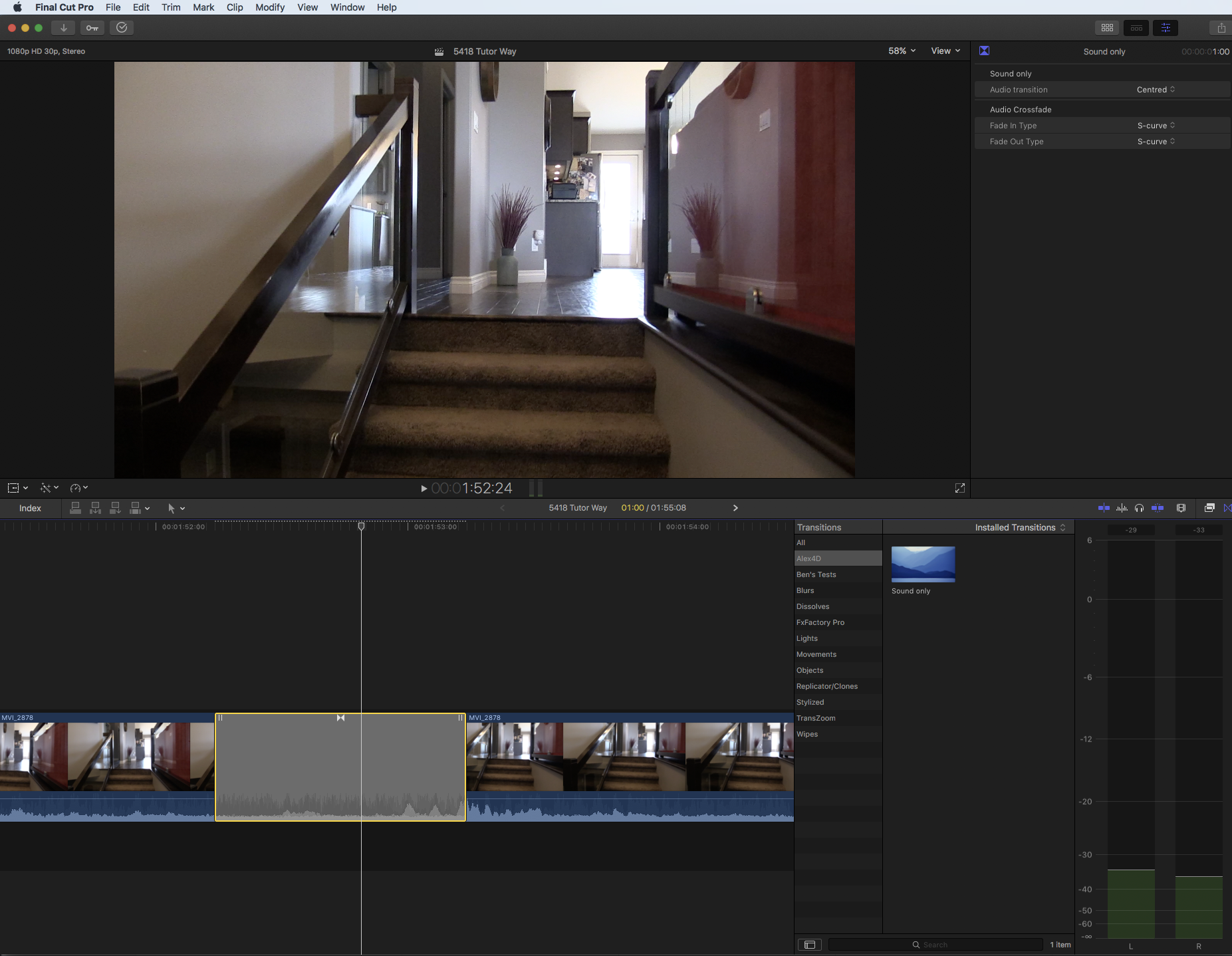
Click anywhere on your timeline
CMD + A which will select all your images (they should all outline in yellow). If you only want to select a few use the SHIFT or CMD modifier and click on the clips that you want to select.
CTRL + D will select the duration option for all the clips you have selected.
Type in 4.00 (4 seconds and 0 frames) or another value for example 2.15 (two seconds and 15 frames) and click enter.
Full Final Cut Pro X Introduction on Skillshare
Looking for my full intro to Final Cut Pro X you can find it here on Skillshare – https://skl.sh/2BTUvhy .
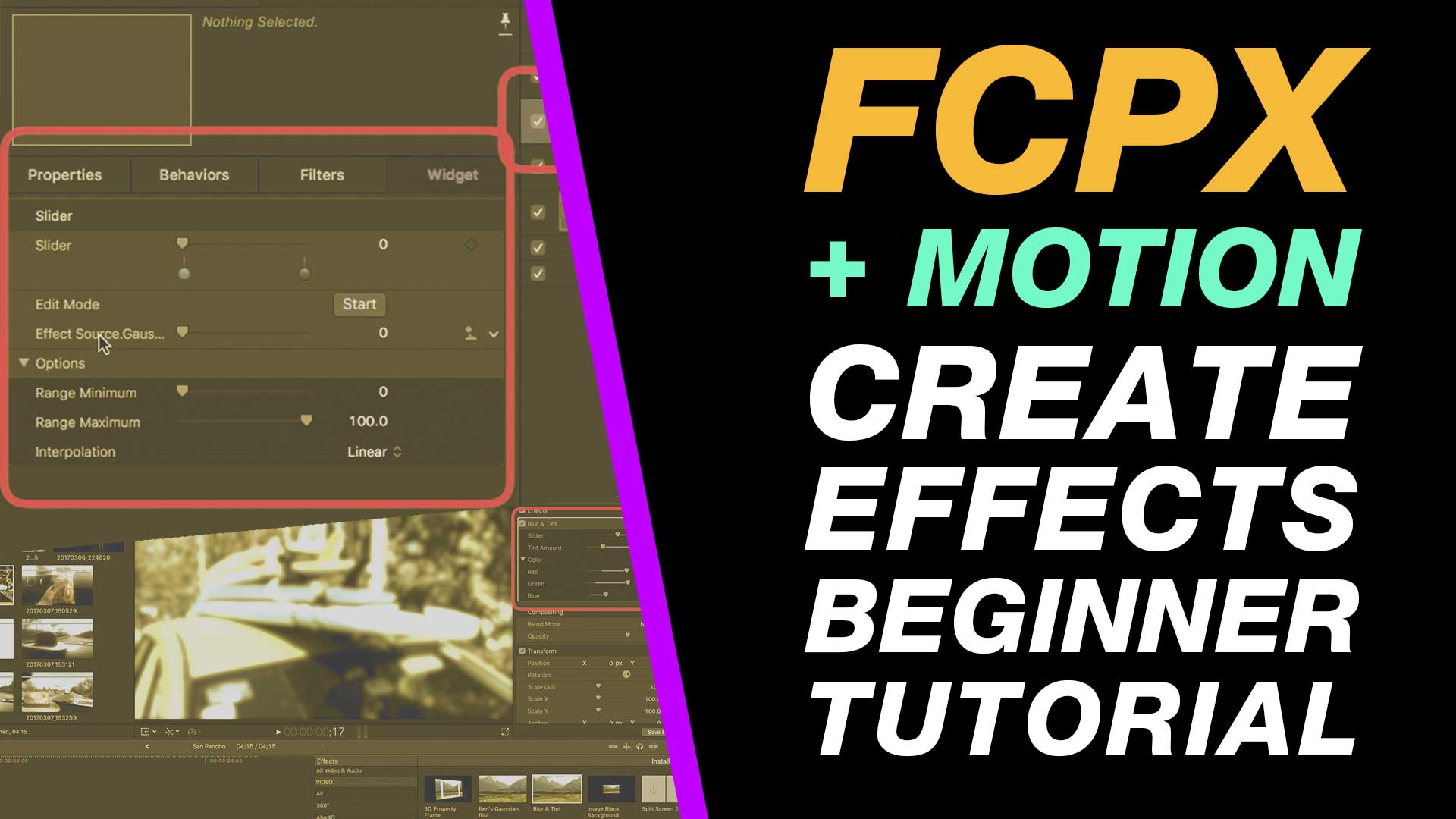
In this Apple Motion and Final Cut Pro X beginner tutorial you will learn how you can create your own effects and plugins for your video editing projects. Taking control of your effects and transitions will allow you move well beyond the capabilities of iMovie using Final Cut Pro X 10.4 and Apple Motion.
This is an easy to follow beginner tutorial that will take you step-by-step through everything you need to know to achieve this free Final Cut Pro plugin effect.
About My Live Online Training & In Classroom Training
I am a professional trainer of Final Cut Pro X, Adobe Premiere Pro, Adobe Photoshop, Adobe InDesign, Adobe Acrobat Pro & Adobe Illustrator.
I regularly teach classes in Regina and across Saskatchewan as well as running live online workshops. If you’d like to find out more then please drop me a message design@benhalsall.com or visit my web-site www.benhalsall.com .
Tags:
Final Cut Pro X 10.4, Final Cut Pro X 10.3, Adjust Timeline Settings – Waveforms – FCPX, Waveform Size in Timeline, Audio Editing in Final Cut Pro X, View Audio Waveform in Final Cut Pro X, View Waveform in FCPX,size of audio waveforms, Removing Lens Dirt & Dust, Dust Spot Removal in Final Cut Pro X, Fix Camera Spot, Garbage Matte Tutorial, Remove Dust and Dirt form Camera Shot, Connected Clips Tutorial, Layers tutorial for Final Cut Pro X, Mange Your Timeline in Final Cut Pro X, Connected Clips in Final Cut Pro X, Final Cut Pro X Beginner Tutorial, Beginner Lesson for Final Cut Pro X, Learn Final Cut Pro X for Beginners, Final Cut Pro X: An Beginner’s Introduction, The Beginners Guide to Learning FCPX | Ben Halsall, Final Cut Pro – Basics Training – Ben Halsall, Final Cut Pro X Essentials, Final Cut Pro X 101, fcpx tutorials for beginners, final cut pro beginner, final cut 7 tutorial beginner, final cut pro 7 tutorial beginner,fcpx tutorial free download,youtube final cut ben halsall, final cut pro basics, final cut pro basics 2015,final cut pro basics 2016,final cut pro basics 2017,final cut pro basics 2018,final cut pro basics 2019, final cut pro basics 2020,fcpx basics, final cut pro video tutorials,fcpx tutorial free download,final cut pro tutorial youtube,final cut pro 10 basics,how to use final cut pro 10,fcp 10 basic tutorial,fcpx tutorial pdf, final cut pro tutorials for beginners,final cut pro 7 basics,final cut pro 10 export,final cut pro 10 for windows,final cut pro 10 free download,final cut pro 7 tutorial beginner,youtube final cut pink floyd,final cut pro basics 2015, final cut pro intro, final cut pro x intro, final cut pro introduction, final cut pro x introduction, freeze frames in final cut pro x, speed change, speed ramp, working with titles, smart type overlays, overlay type in final cut pro x, overlay type using smart colour adjustment, split screen in final cut pro x, create split screen, copy and paste attributes, stop motion animation, final cut pro tutorial 2017, final cut pro tutorial 2018, final cut pro tutorial for beginners, final cut pro beginner tutorial, adobe premiere, mac os x, final cut pro tutorial pdf, imovie tutorial, final cut pro 10 tutorial, final cut pro x tutorial deutsch, final cut pro tutorial beginners, final cut pro tutorial for beginners, tutorial final cut pro español
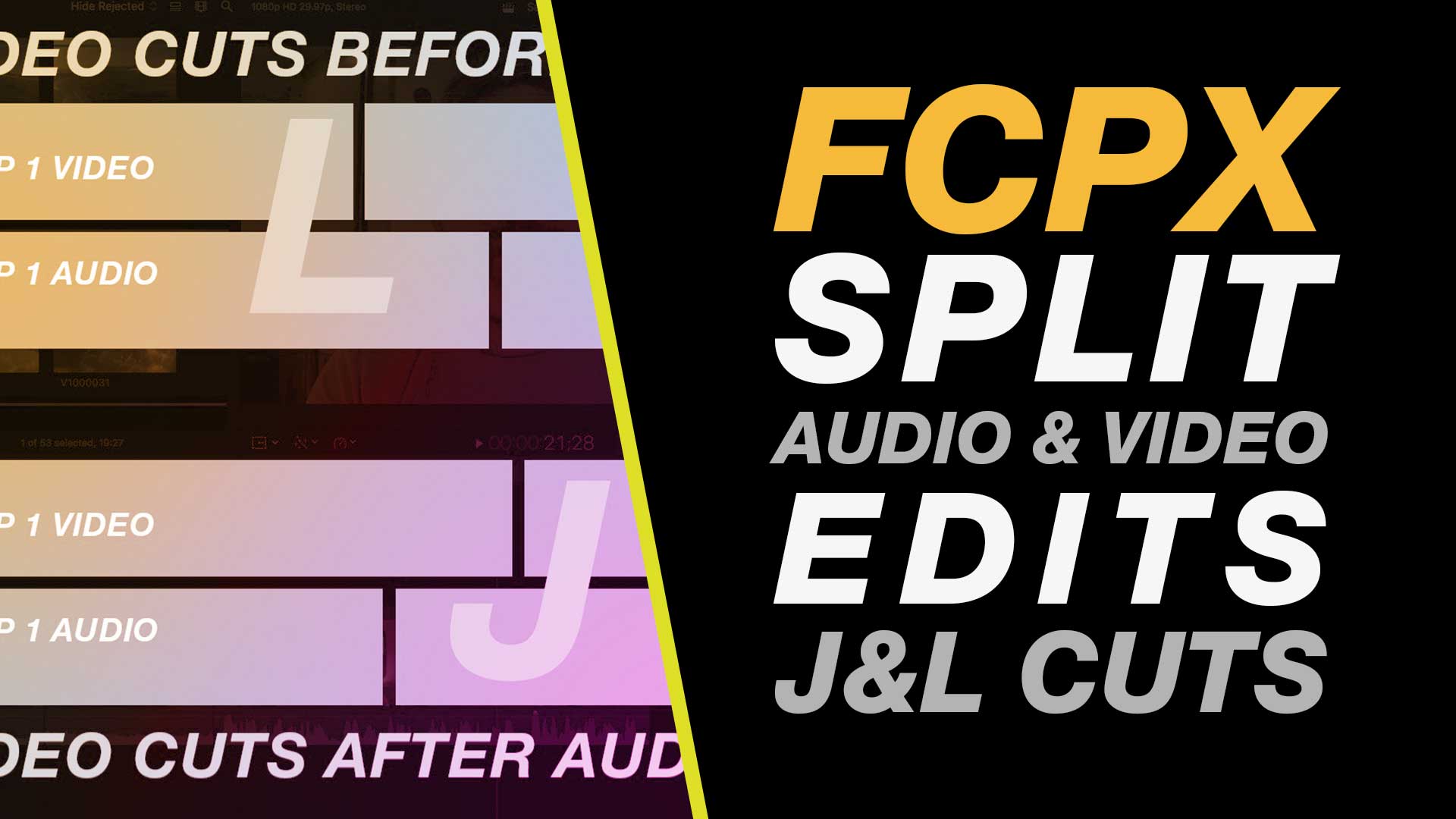
In this Final Cut Pro free tutorial for beginners learn how to make split, J & L cuts, on your mac just like you can in Premiere Pro, Final Cut Pro 7 and Avid. There is no need to download any plugins in this free tutorial. All you will need is Apple Final Cut Pro installed on your Apple Mac.
Whether you are using a MacBook Pro or iMac this technique will help you to create professional edits in Final Cut Pro X, a professional software that gives you lots more control than iMovie.
If you are looking for a Final Cut Pro X free download visit Apple’s web-site where you can find the video editing software available for a free 7 day trial. The latest version is Final Cut Pro 10.4.
Final Cut Pro X for windows is not available but you can find some great Final Cut Pro 2017 tutorials on this channel.
About My Live Online Training & In Classroom Training
I am a professional trainer of Final Cut Pro X, Adobe Premiere Pro, Adobe Photoshop, Adobe InDesign, Adobe Acrobat Pro & Adobe Illustrator.
I regularly teach classes in Regina and across Saskatchewan as well as running live online workshops. If you’d like to find out more then please drop me a message design@benhalsall.com or visit my web-site www.benhalsall.com .
Tags:
Final Cut Pro X 10.4, Final Cut Pro X 10.3, Adjust Timeline Settings – Waveforms – FCPX, Waveform Size in Timeline, Audio Editing in Final Cut Pro X, View Audio Waveform in Final Cut Pro X, View Waveform in FCPX,size of audio waveforms, Removing Lens Dirt & Dust, Dust Spot Removal in Final Cut Pro X, Fix Camera Spot, Garbage Matte Tutorial, Remove Dust and Dirt form Camera Shot, Connected Clips Tutorial, Layers tutorial for Final Cut Pro X, Mange Your Timeline in Final Cut Pro X, Connected Clips in Final Cut Pro X, Final Cut Pro X Beginner Tutorial, Beginner Lesson for Final Cut Pro X, Learn Final Cut Pro X for Beginners, Final Cut Pro X: An Beginner’s Introduction, The Beginners Guide to Learning FCPX | Ben Halsall, Final Cut Pro – Basics Training – Ben Halsall, Final Cut Pro X Essentials, Final Cut Pro X 101, fcpx tutorials for beginners, final cut pro beginner, final cut 7 tutorial beginner, final cut pro 7 tutorial beginner,fcpx tutorial free download,youtube final cut ben halsall, final cut pro basics, final cut pro basics 2015,final cut pro basics 2016,final cut pro basics 2017,final cut pro basics 2018,final cut pro basics 2019, final cut pro basics 2020,fcpx basics, final cut pro video tutorials,fcpx tutorial free download,final cut pro tutorial youtube,final cut pro 10 basics,how to use final cut pro 10,fcp 10 basic tutorial,fcpx tutorial pdf, final cut pro tutorials for beginners,final cut pro 7 basics,final cut pro 10 export,final cut pro 10 for windows,final cut pro 10 free download,final cut pro 7 tutorial beginner,youtube final cut pink floyd,final cut pro basics 2015, final cut pro intro, final cut pro x intro, final cut pro introduction, final cut pro x introduction, freeze frames in final cut pro x, speed change, speed ramp, working with titles, smart type overlays, overlay type in final cut pro x, overlay type using smart colour adjustment, split screen in final cut pro x, create split screen, copy and paste attributes, stop motion animation, final cut pro tutorial 2017, final cut pro tutorial 2018, final cut pro tutorial for beginners, final cut pro beginner tutorial, adobe premiere, mac os x, final cut pro tutorial pdf, imovie tutorial, final cut pro 10 tutorial, final cut pro x tutorial deutsch, final cut pro tutorial beginners, final cut pro tutorial for beginners, tutorial final cut pro español
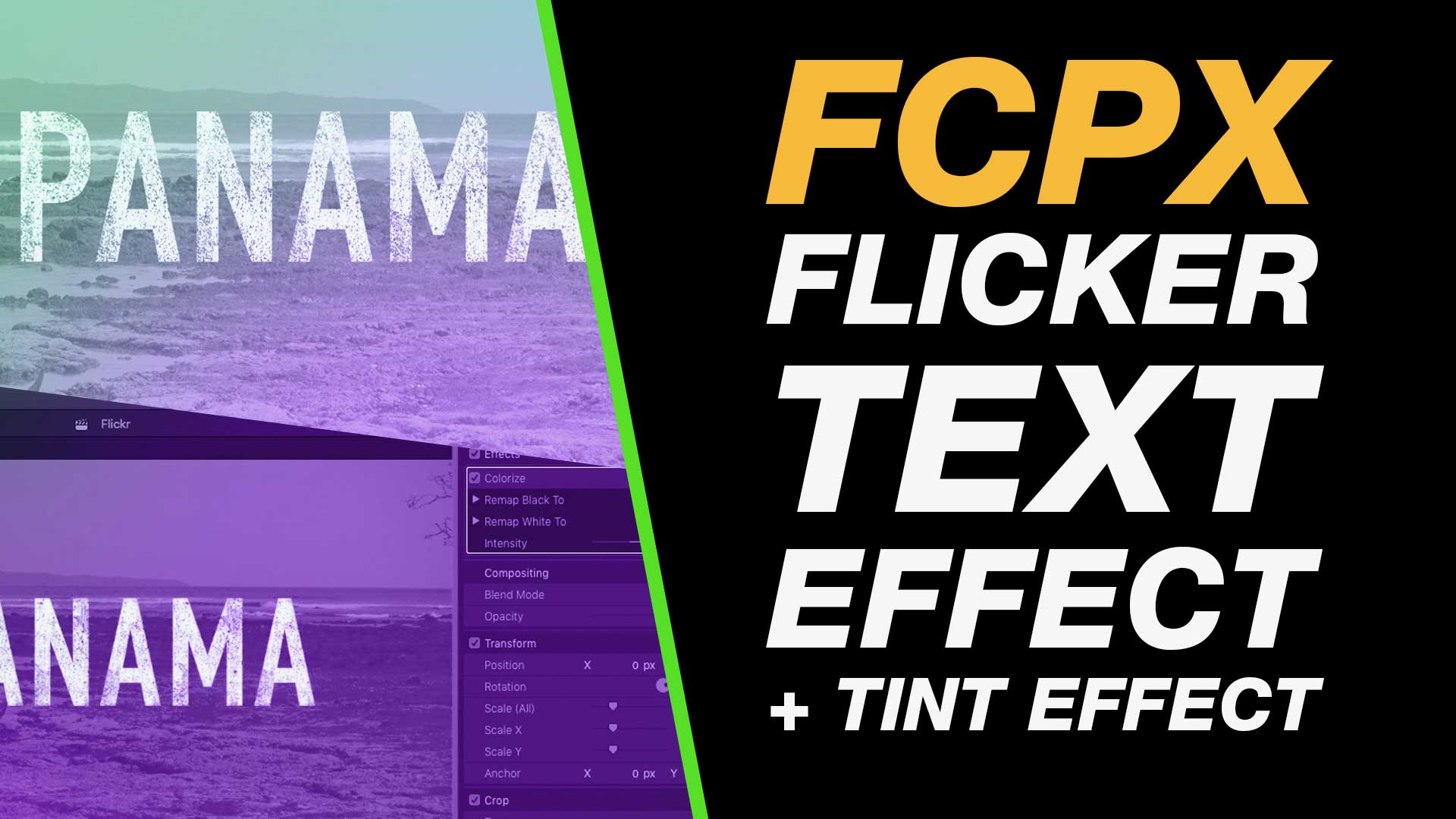
In this tutorial you will learn how to make a cool text flicker effect that includes text transparency, scale and a tinted background. This tutorial runs through everything step-by-step with on-screen highlights that make it easy to follow for beginners and experienced editors alike.
This flashing type tutorial is jam packed with shortcut tips and tricks that will help your editing in Final Cut Pro X as you learn the software.
My Final Cut Pro X help tutorials aim to answer the tricky questions that users come across everyday. These are great classes if you want to learn Final Cut Pro X and each lesson or tip will guide you through in easy to follow steps.
If you are a beginner looking for tutorials in Final Cut Pro X take a look at my free introductory lesson “Final Cut Pro X Beginner Tutorial : Import, Edit & Export in 25 Minutes” which will get you started. This basic tutorial gives you a full run through of how to what you need to know in order to edit videos.
About My Live Online Training & In Classroom Training
I am a professional trainer of Final Cut Pro X, Adobe Premiere Pro, Adobe Photoshop, Adobe InDesign, Adobe Acrobat Pro & Adobe Illustrator.
I regularly teach classes in Regina and across Saskatchewan as well as running live online workshops. If you’d like to find out more then please drop me a message design@benhalsall.com or visit my web-site www.benhalsall.com .
Final Cut Pro X 10.4, Final Cut Pro X 10.3, Adjust Timeline Settings – Waveforms – FCPX, Waveform Size in Timeline, Audio Editing in Final Cut Pro X, View Audio Waveform in Final Cut Pro X, View Waveform in FCPX,size of audio waveforms, Removing Lens Dirt & Dust, Dust Spot Removal in Final Cut Pro X, Fix Camera Spot, Garbage Matte Tutorial, Remove Dust and Dirt form Camera Shot, Connected Clips Tutorial, Layers tutorial for Final Cut Pro X, Mange Your Timeline in Final Cut Pro X, Connected Clips in Final Cut Pro X, Final Cut Pro X Beginner Tutorial, Beginner Lesson for Final Cut Pro X, Learn Final Cut Pro X for Beginners, Final Cut Pro X: An Beginner’s Introduction, The Beginners Guide to Learning FCPX | Ben Halsall, Final Cut Pro – Basics Training – Ben Halsall, Final Cut Pro X Essentials, Final Cut Pro X 101, fcpx tutorials for beginners, final cut pro beginner, final cut 7 tutorial beginner, final cut pro 7 tutorial beginner,fcpx tutorial free download,youtube final cut ben halsall, final cut pro basics, final cut pro basics 2015,final cut pro basics 2016,final cut pro basics 2017,final cut pro basics 2018,final cut pro basics 2019, final cut pro basics 2020,fcpx basics, final cut pro video tutorials,fcpx tutorial free download,final cut pro tutorial youtube,final cut pro 10 basics,how to use final cut pro 10,fcp 10 basic tutorial,fcpx tutorial pdf, final cut pro tutorials for beginners,final cut pro 7 basics,final cut pro 10 export,final cut pro 10 for windows,final cut pro 10 free download,final cut pro 7 tutorial beginner,youtube final cut pink floyd,final cut pro basics 2015, final cut pro intro, final cut pro x intro, final cut pro introduction, timelapse animation, frame duration in final cut pro x, change frame duration in final cut pro x, final cut pro x beginner tutorial, add effects in final cut pro x, transitions in final cut pro, control transition duration, precision control of transition length, controlling transition length in fcpx, create square video in final cut pro x, create square video in fcpx, custom video resolution, create 1080 x 1080 video for instagram, create hi def square video in final cut pro x, final cut pro x tutorial, final cut pro x beginner tutorial, drag and drop editing, editing in final cut pro x, essential editing in final cut pro x, drag & drop editing
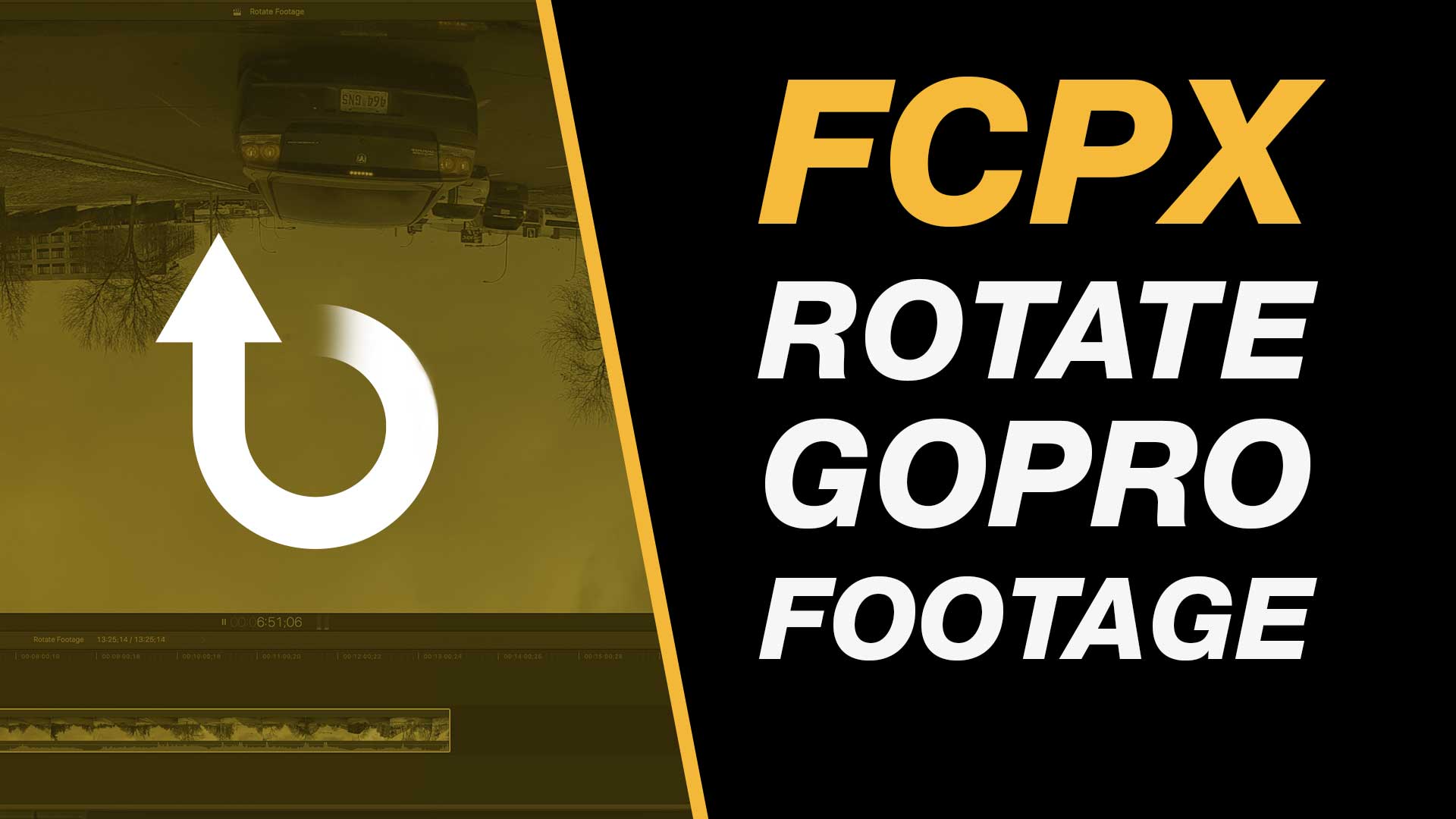
In this quick and easy to follow Final Cut Pro X tutorial we will look at how to rotate iPhone, Android, GoPro, action camera or other footage by 180 degrees.
My Final Cut Pro X help tutorials aim to answer the tricky questions that users come across everyday. These are great classes if you want to learn Final Cut Pro X and each lesson or tip will guide you through in easy to follow steps.
If you are a beginner looking for tutorials in Final Cut Pro X take a look at my free introductory lesson “Final Cut Pro X Beginner Tutorial : Import, Edit & Export in 25 Minutes” which will get you started. This basic tutorial gives you a full run through of how to what you need to know in order to edit videos.
About My Live Online Training & In Classroom Training
I am a professional trainer of Final Cut Pro X, Adobe Premiere Pro, Adobe Photoshop, Adobe InDesign, Adobe Acrobat Pro & Adobe Illustrator.
I regularly teach classes in Regina and across Saskatchewan as well as running live online workshops. If you’d like to find out more then please drop me a message design@benhalsall.com or visit my web-site www.benhalsall.com .
Make speed changes in Final Cut Pro X, Speed up Titles, Using Markers in Final Cut Pro X, Working with Markers, Final Cut Pro X tutorial, Final Cut Pro X Beginner Tutorial, Chapter Markers in FCPX, Ways to view audio clips – Apple FCPX, Adjust Timeline Settings – Waveforms – FCPX, Waveform Size in Timeline, Audio Editing in Final Cut Pro X, View Audio Waveform in Final Cut Pro X, View Waveform in FCPX,size of audio waveforms, Removing Lens Dirt & Dust, Dust Spot Removal in Final Cut Pro X, Fix Camera Spot, Garbage Matte Tutorial, Remove Dust and Dirt form Camera Shot, Connected Clips Tutorial, Layers tutorial for Final Cut Pro X, Mange Your Timeline in Final Cut Pro X, Connected Clips in Final Cut Pro X, Final Cut Pro X Beginner Tutorial, Beginner Lesson for Final Cut Pro X, Learn Final Cut Pro X for Beginners, Final Cut Pro X: An Beginner’s Introduction, The Beginners Guide to Learning FCPX | Ben Halsall, Final Cut Pro – Basics Training – Ben Halsall, Final Cut Pro X Essentials, Final Cut Pro X 101, fcpx tutorials for beginners, final cut pro beginner, final cut 7 tutorial beginner, final cut pro 7 tutorial beginner,fcpx tutorial free download,youtube final cut ben halsall, final cut pro basics, final cut pro basics 2015,final cut pro basics 2016,final cut pro basics 2017,final cut pro basics 2018,final cut pro basics 2019, final cut pro basics 2020,fcpx basics, final cut pro video tutorials,fcpx tutorial free download,final cut pro tutorial youtube,final cut pro 10 basics,how to use final cut pro 10,fcp 10 basic tutorial,fcpx tutorial pdf, final cut pro tutorials for beginners,final cut pro 7 basics,final cut pro 10 export,final cut pro 10 for windows,final cut pro 10 free download,final cut pro 7 tutorial beginner,youtube final cut pink floyd,final cut pro basics 2015, final cut pro intro, final cut pro x intro, final cut pro introduction, final cut pro x introduction, freeze frames in final cut pro x, speed change, speed ramp, working with titles
Learn shortcuts that will help you to move around your timeline with ease. Create edits, make selections as you move fluidly around your edit. This easy to follow tutorial includes shortcuts that I use daily to help me edit quicker and more easily.
About My Final Cut Pro X Tutorials
My Final Cut Pro X help tutorials aim to answer the tricky questions that users come across everyday. These are great classes if you want to learn Final Cut Pro X and each lesson or tip will guide you through in easy to follow steps.
If you are a beginner looking for tutorials in Final Cut Pro X take a look at my free introductory lesson “Final Cut Pro X Beginner Tutorial : Import, Edit & Export in 25 Minutes” which will get you started. This basic tutorial gives you a full run through of how to what you need to know in order to edit videos.
About My Live Online Training & In Classroom Training
I am a professional trainer of Final Cut Pro X, Adobe Premiere Pro, Adobe Photoshop, Adobe InDesign, Adobe Acrobat Pro & Adobe Illustrator.
I regularly teach classes in Regina and across Saskatchewan as well as running live online workshops. If you’d like to find out more then please drop me a message design@benhalsall.com or visit my web-site www.benhalsall.com .
Tags:
Using Markers in Final Cut Pro X, Working with Markers, Final Cut Pro X tutorial, Final Cut Pro X Beginner Tutorial, Chapter Markers in FCPX, Ways to view audio clips – Apple FCPX, Adjust Timeline Settings – Waveforms – FCPX, Waveform Size in Timeline, Audio Editing in Final Cut Pro X, View Audio Waveform in Final Cut Pro X, View Waveform in FCPX,size of audio waveforms, Removing Lens Dirt & Dust, Dust Spot Removal in Final Cut Pro X, Fix Camera Spot, Garbage Matte Tutorial, Remove Dust and Dirt form Camera Shot, Connected Clips Tutorial, Layers tutorial for Final Cut Pro X, Mange Your Timeline in Final Cut Pro X, Connected Clips in Final Cut Pro X, Final Cut Pro X Beginner Tutorial, Beginner Lesson for Final Cut Pro X, Learn Final Cut Pro X for Beginners, Final Cut Pro X: An Beginner’s Introduction, The Beginners Guide to Learning FCPX | Ben Halsall, Final Cut Pro – Basics Training – Ben Halsall, Final Cut Pro X Essentials, Final Cut Pro X 101, fcpx tutorials for beginners, final cut pro beginner, final cut 7 tutorial beginner, final cut pro 7 tutorial beginner,fcpx tutorial free download,youtube final cut ben halsall, final cut pro basics, final cut pro basics 2015,final cut pro basics 2016,final cut pro basics 2017,final cut pro basics 2018,final cut pro basics 2019, final cut pro basics 2020,fcpx basics, final cut pro video tutorials,fcpx tutorial free download,final cut pro tutorial youtube,final cut pro 10 basics,how to use final cut pro 10,fcp 10 basic tutorial,fcpx tutorial pdf, final cut pro tutorials for beginners,final cut pro 7 basics,final cut pro 10 export,final cut pro 10 for windows,final cut pro 10 free download,final cut pro 7 tutorial beginner,youtube final cut pink floyd,final cut pro basics 2015, final cut pro intro, final cut pro x intro, final cut pro introduction, final cut pro x introduction, shortcut keys in final cut pro x, keyboard shortcuts for fcpx, final cut pro x shortcuts
This tutorial will work in Final Cut Pro X 10.2, 10.3 or 10.4. Just follow the steps below or watch the video and away you go!
Whether you have 10 image, 100 image or 1000+ images this technique will allow you change the duration of multiple images on the timeline in one go. This is great for getting the timing of a slideshow presentation right without having to individually edit files. We walk through how to do this on the main storyline and on a connected storyline. This question is from Gaasm’s comment on the tutorial Final Cut Pro X: Import an Animated GIF with Transparency .
Step-by-step process – change multiple clip durations
Click anywhere on your timeline
CMD + A which will select all your images (they should all outline in yellow). If you only want to select a few use the SHIFT or CMD modifier and click on the clips that you want to select.
CTRL + D will select the duration option for all the clips you have selected.
Type in 4.00 (4 seconds and 0 frames) or another value for example 2.15 (two seconds and 15 frames) and click enter.
Full Final Cut Pro X Introduction on Skillshare
Looking for my full intro to Final Cut Pro X you can find it here on Skillshare – https://skl.sh/2BTUvhy .
In this tutorial, we reveal a step-by-step walkthrough for seamlessly integrating captivating scrolling title credits into your Final Cut Pro project. Enhance the visual appeal of your content with these strategic techniques:
1. Optimal Scene Setup: Initiate your project by selecting a still image strategically positioned for seamless color adjustments, ensuring an ideal backdrop for your scrolling titles.
2. Effortless Navigation to Titles and Text Generators: Access titles and text generators easily by utilizing the “Show or hide titles and generators sidebar” feature in the top left corner. Locate the scrolling credit roll within the credits section.
3. Swift Implementation of Scrolling Credits: Drag and drop the scrolling credits onto your timeline, then fine-tune settings using the inspector on the top right for a polished outcome.
4. Meticulous Text Customization: Input film and actor details manually, maintaining consistent spacing. Employ spreadsheets for organized alignment, streamlining the process for efficient editing.
5. Control Speed and Duration: Manage the speed of your scrolling credits by adjusting the clip duration to accommodate the number of credits, ensuring a seamless and visually engaging experience.
6. Enhanced Visibility Through Color Correction: Leverage the color correction tool to optimize the contrast between your background image and titles. Lift blacks, fine-tune mid-tones, and adjust whites for enhanced visibility.
7. Explore Additional Text Editing Tools: Delve into the inspector’s basic options for tracking, line spacing, and text formatting, allowing for further customization and personalization.
8. Final Touches and Conclusion: Fine-tune your scrolling credits to align perfectly with the background image, adjusting duration, speed, and color for maximum visual impact.
Congratulations! With this comprehensive guide, you’ve mastered the art of seamlessly integrating scrolling title credits in Final Cut Pro. Subscribe for more expert Final Cut Pro insights and explore our tailored courses for an immersive introduction to Final Cut Pro. Thank you for reading, and stay tuned for our next tutorial!