5 Essential Adobe InDesign Tips for Layout, Text, and Export Workflows

Adobe InDesign tips and tutorials often focus on individual tools, but the real productivity gains come from understanding repeatable workflows. Over the years, a handful of InDesign videos on my YouTube channel have consistently stood out—not because they’re flashy, but because they solve common layout, text, and export problems that come up again and again in real projects.

This post brings those five most popular InDesign tutorials together on a single page. Each one focuses on a specific task, explains why the tool works the way it does, and shows a workflow that scales beyond a one-off fix.

If you use InDesign regularly—for teaching materials, reports, marketing layouts, or digital assets—these are well worth having in your back pocket.

Why These Adobe InDesign Tips and Tutorials Matter

When you use Adobe InDesign regularly, small inefficiencies have a habit of compounding. Manually fixing alignment, re-exporting assets at different sizes, nudging text frames into place, or repairing broken tables might not feel like a big deal in isolation—but over time, they slow everything down and introduce inconsistency. The workflows in these tutorials are designed to solve that problem. Instead of one-off fixes, each approach shows how InDesign is intended to be used, with styles, structure, and reusable logic built in from the start. As a result, documents become easier to update, layouts stay consistent, and common formatting issues stop reappearing. These are the kinds of techniques that quietly improve every project you touch.


1. Exporting Transparent PNGs from InDesign (and When to Use Photoshop Instead)

Exporting a PNG with a transparent background from InDesign is straightforward—but only if the size you need matches the size of the layout. As soon as you need flexibility, things get more complicated.

In this video, I cover two approaches:

  • Exporting a transparent PNG directly from InDesign
  • Copying artwork into Photoshop as a Smart Object and exporting from there

The second approach gives you far more control over scaling, cropping, and output quality—especially for logos or reusable assets.

Pro tip:
If you’ll ever need the graphic at multiple sizes, paste it into Photoshop as a Smart Object. You can scale it up or down without losing quality, which is far more forgiving than exporting multiple PNGs from InDesign.


2. Aligning Paragraphs Cleanly Using Tabs and Indents

This is one of those techniques that looks complicated until you understand what’s really happening.

In this tutorial, I show how to:

  • Use tabs to align paragraph content
  • Combine left indent and negative first-line indent
  • Turn on hidden characters to see what’s actually going on
  • Save everything as a reusable paragraph style
  • Use nested styles to automatically format text up to a tab

Once set up, this approach makes it easy to format lists, definitions, or labelled paragraphs consistently across long documents.

Pro tip:
A negative first-line indent paired with a left indent is the key to clean alignment. Wrap it in a paragraph style and it becomes one of the most reliable InDesign workflow techniques for consistent text layout.


3. Changing Bullet Size and Colour Using InDesign Formatting Techniques

Bullets in InDesign often feel frustrating to work with—until you realise they’re just characters with their own formatting.

In this video, I walk through:

  • Creating a paragraph style for a bulleted list
  • Creating a separate character style for the bullet itself
  • Attaching that character style inside the paragraph style
  • Adjusting bullet size, colour, and baseline independently
  • Using alternative bullet symbols when needed

This gives you much more control and avoids breaking your text formatting.

Pro tip:
Never resize bullets by changing paragraph text size. Use a dedicated character style for bullets so you can tweak size and colour without affecting the list text.


4. Shaping Text Frames to Follow Images and Architecture

Text frames in InDesign don’t have to be rectangles—and once you start shaping them intentionally, these InDesign layout techniques open up far more creative options.

This tutorial covers several practical methods:

  • Adjusting text frame points with the Direct Selection Tool
  • Combining shapes using Pathfinder to create curved frames
  • Adding anchor points to an existing text frame
  • Using inset spacing to keep text readable near edges

These techniques are especially useful when working with photography, architecture, or strong diagonals.

Pro tip:
Lock your image layer before reshaping text frames. It prevents accidental movement and makes precise edits much easier.


5. Moving Rows in InDesign Tables with Practical InDesign Tips

Tables are one of those areas where InDesign can feel unforgiving. A simple cut-and-paste can easily mess up alignment or formatting.

In this quick tip, I show a reliable method to reorder rows:

  • Copy the rows you want to move
  • Insert the same number of rows in the new location
  • Paste into the new rows
  • Delete the originals

It’s simple—but it avoids a lot of frustration.

Pro tip:
Always insert rows before pasting. Matching row and column structure is what keeps tables intact.


Final Thoughts on Why These Adobe InDesign Workflows Matter

All five of these tutorials focus on the same idea: working with InDesign the way it’s designed to be used, rather than fighting it.

Together, these Adobe InDesign tips and tutorials cover exporting assets cleanly, aligning text precisely, styling lists properly, designing layouts around images, and editing tables safely. Each workflow is designed to remove friction and reduce the kind of repetitive fixes that slow projects down over time.

If you’ve ever found yourself nudging elements pixel by pixel or correcting the same formatting issues again and again, these approaches are meant to stop that cycle and make your documents easier to manage as they grow.

If there’s a specific InDesign problem you keep running into—or a workflow you’d like me to break down in more detail—feel free to get in touch or leave a comment.

Related InDesign articles

Changing units of measurement in InDesign
https://benhalsall.com/indesign-changing-units-of-measurement-for-one-or-all-of-your-documents-tutorial-reginatraining-yqr-adobeindesign-cm-in/

Create custom image frames with shapes and Pathfinder
https://benhalsall.com/indesign-create-custom-image-frames-with-shapes-type-the-pathfinder-in-this-graphic-design-class/

Rotate the frame without rotating the image in InDesign
https://benhalsall.com/adobe-indesign-beginner-tutorial-covering-image-placement-and-5-other-free-classes/

Adobe InDesign User Guide
https://helpx.adobe.com/indesign/user-guide.html
How to Create Smooth Rotation Animations in Final Cut Pro (Using Keyframes)

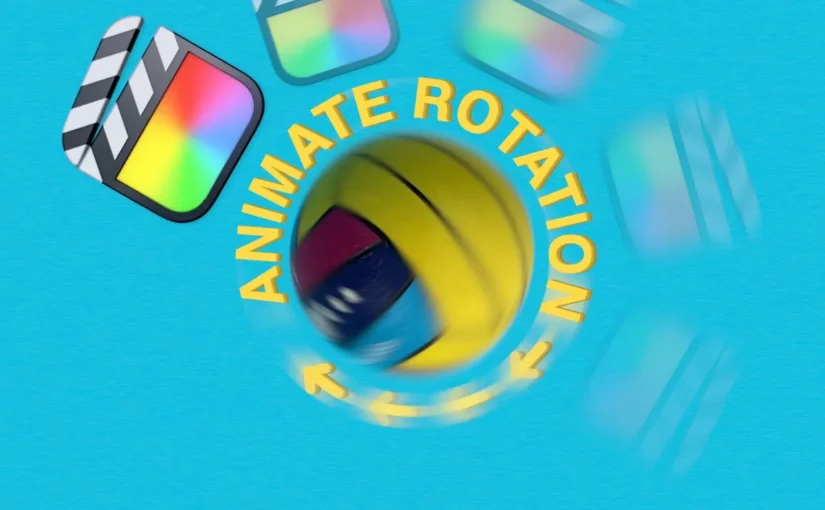
Final Cut Pro rotation animation is easiest to control when you use keyframes instead of built-in transitions. In this tutorial, you’ll learn how to create a smooth rotation animation in Final Cut Pro using keyframes, giving you precise control over timing, direction, masking, and motion blur.

In this guide, you’ll learn how to create a smooth rotation animation in Final Cut Pro using keyframes, giving you precise control over timing, direction, and where the animation stops.

This technique works for images, logos, graphics, and motion elements — and doesn’t require any plugins.


Why Built-In Final Cut Pro Rotation Animations Are Limited

Final Cut Pro includes rotation and movement transitions that can be applied at the start or end of a clip. While these are quick to use, they come with limitations:

  • You can’t rotate a full 360 degrees
  • You have minimal control over timing
  • The animation always happens at the clip edge
  • Fine adjustments are difficult or impossible

For anything more than a basic effect, keyframe animation is the better option.


Creating a Final Cut Pro Rotation Animation with Keyframes

Keyframes allow you to define exactly how an object changes over time. When animating rotation, this means you can control:

  • How far an object rotates
  • How fast it spins
  • Where the animation starts and stops
  • Whether the motion feels smooth or abrupt

To begin, place your clip on the timeline and open the Video Inspector. Under the Transform settings, you’ll find the rotation parameter.

Add a keyframe at the start of the clip, then move the playhead forward and set a second keyframe where you want the rotation to end. Adjust the rotation value, and Final Cut Pro will animate between those points.

Learn More About Final Cut Pro Keyframe Animation

If you want a deeper understanding of how keyframes work in Final Cut Pro, Apple’s official documentation explains how to animate effects, control timing, and adjust parameters using keyframes.

Find out more: Apple’s official guide to animating effects with keyframes in Final Cut Pro
https://support.apple.com/en-ca/guide/final-cut-pro/ver8e3f20ea/11.2/mac/15.6


Setting the Anchor Point for a Clean Rotation Animation

By default, objects may rotate around an unexpected point. To fix this, adjust the anchor point so it sits in the visual center of your object.

This is especially important for circular objects, logos, or anything meant to spin in place. Even a small anchor point adjustment can dramatically improve how natural the animation looks.


Removing Backgrounds for Rotation Animation in Final Cut Pro

If your object has a visible background, you can isolate it using a shape mask:

  • Apply a shape mask effect
  • Resize and position it around the object
  • Curve the edges to match the shape
  • Reduce feathering for a clean edge

For best results, it often helps to place a solid color behind the object that closely matches the original background. This minimizes edge halos and makes the mask look more natural.


Adding Motion Blur to a Final Cut Pro Rotation Animation

Rotation animations can look unnatural if everything stays perfectly sharp. Adding a subtle radial blur introduces motion blur that makes the movement feel more realistic.

You can keyframe the blur amount so it appears during the rotation and disappears when the object stops moving. This small detail can make a big difference in perceived quality.


Controlling Speed and Timing in Final Cut Pro Rotation Animations

To fine-tune your animation:

  • Move keyframes closer together to speed it up
  • Spread them further apart to slow it down
  • Increase rotation values for faster spins
  • Remove or delete keyframes to stop motion instantly

Viewing the animation controls in the timeline makes it easier to see how changes affect timing.


When to Use This Technique

This rotation animation approach is ideal for:

  • Tutorials and explainer videos
  • Logos and branding elements
  • Motion graphics and intros
  • Educational and instructional content
  • Social media clips

If you want predictable, professional animation in Final Cut Pro, keyframes are essential.


Final Thoughts

Learning how to rotate objects using keyframes in Final Cut Pro unlocks a level of control that basic transitions simply can’t match. Once you understand how anchor points, masks, and motion blur work together, you can create clean, polished animations without relying on third-party tools.

If you’re serious about improving your Final Cut Pro animations, this is a core technique worth mastering.

Want Help Applying This in Your Own Final Cut Pro Projects?

If you want hands-on help applying this Final Cut Pro animation technique to your own projects, I offer one-to-one online Final Cut Pro training. Sessions are flexible, focused on real editing problems, and tailored to your workflow — whether you’re just getting started or refining advanced animation and keyframe techniques.

👉 Find out more: One-to-one Final Cut Pro training

I Used ChatGPT to Edit a Final Cut Pro Tutorial Automatically (XML Workflow Explained)


Can ChatGPT Speed Up Editing in Final Cut Pro?

Editing long tutorials slows creators down. Cutting pauses, tightening explanations, and shaping a usable rough cut often takes longer than recording the video itself. Because of this, I tested a workflow that uses captions, XML, and ChatGPT to speed up editing directly inside Final Cut Pro.

Rather than guessing, I ran the process end to end—and the results were immediately useful.


I Turn Captions into an Editable Timeline

First, I use Final Cut Pro’s built-in caption transcription to convert spoken content into structured text. Instead of starting with blades and timelines, I start with language.

Next, I export the captions as text and send them to ChatGPT with a clear instruction: generate a Final Cut Pro XML file that creates a tight, tutorial-focused edit.

As a result, the edit decisions come from what I actually teach, not from arbitrary cuts.


I Import the AI Edit Back into Final Cut Pro

Then, I import the generated XML back into Final Cut Pro. At this point, I match the timeline resolution to the original media. Otherwise, the XML won’t align correctly.

After importing, I relink the original screen recording. Immediately, the timeline snaps into place with a shortened, structured cut that removes filler and keeps momentum high.

This step alone saves significant editing time.


Where This Workflow Excels—and Where It Doesn’t

This approach does not replace an editor. I still review pacing, clarify explanations, and adjust timing. However, it eliminates the slowest part of the process: building the first rough cut.

More importantly, for tutorial creators and instructors, this workflow consistently turns long recordings into focused edits in minutes rather than hours.


Why I Teach Final Cut Pro This Way

Most Final Cut Pro training focuses on tools. I focus on workflows.

That means I teach creators how to:

  • Edit faster without losing clarity
  • Build repeatable tutorial systems
  • Use AI intentionally, not blindly
  • Work confidently with captions, XML, and structured edits

As a result, my clients spend less time editing and more time creating.


Who This Is For

This workflow works especially well for:

  • Educators recording lectures or demos
  • Course creators building online training
  • Teams producing internal instructional videos
  • Creators who publish tutorials regularly

If that sounds like you, this approach scales.


Final Cut Pro Instruction That Saves Time

Ultimately, AI doesn’t replace judgement—it removes friction. When the trimmed version still works, you’ve already won back hours.

If you want to apply workflows like this to your own projects, I offer focused, practical Final Cut Pro online instruction. I work directly with educators and creators who want faster, cleaner edits using real-world systems—not gimmicks.

Want Help Applying This in Your Own Final Cut Pro Projects?

If you want hands-on help applying this Final Cut Pro animation technique to your own projects, I offer one-to-one online Final Cut Pro training. Sessions are flexible, focused on real editing problems, and tailored to your workflow — whether you’re just getting started or refining advanced animation and keyframe techniques.

👉 Find out more: One-to-one Final Cut Pro training

Create a Workout Video Countdown Timer with Built-in Final Cut Pro Tools

Learn how to make a countdown timer in Final Cut Pro with only the built-in tools. You will develop useful skills about the benefits of working with compound clips in order to manipulate and get the most of Final Cut Pro’s built-in plugins.

Perfect for any exercise video or workout routine content you are creating!

Continue reading Create a Workout Video Countdown Timer with Built-in Final Cut Pro Tools

Final Cut Pro Timeline Shortcuts Quiz

This quiz tests your familiarity with Final Cut Pro shortcuts and features. It covers essential functions such as duplicating clips, copying and pasting attributes, toggling the magnetic timeline, moving clips without changing their position, and grouping clips together. By answering these questions, you can gauge your proficiency in using Final Cut Pro efficiently for video editing tasks.

👉🏼 Take the Timeline Quiz Now

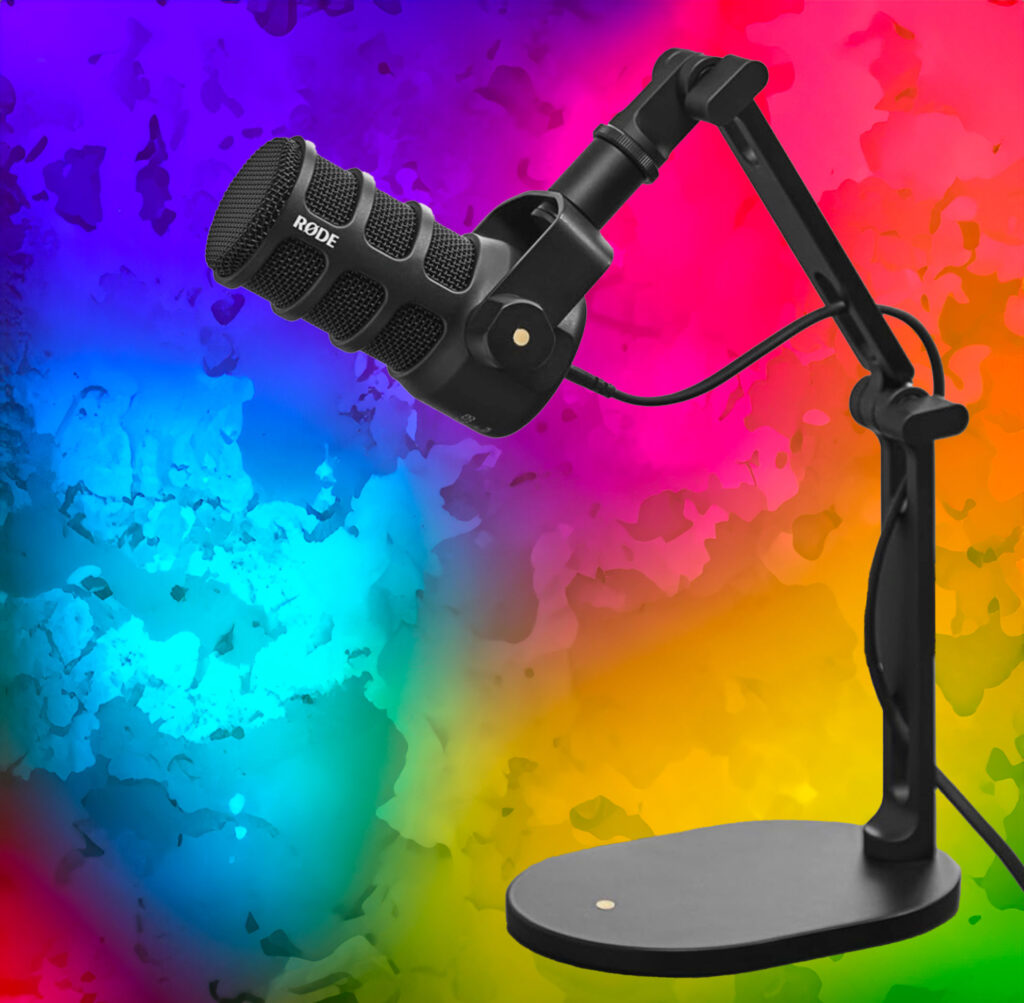
Unveiling the RØDE PodMic USB: Your Ultimate Companion for Crystal-Clear Audio Excellence!

After transitioning to the RØDE PodMic USB, I’m thoroughly impressed by its robustness and functionality. Crafted from durable metal and equipped with both USB-C and XLR connectors, it boasts longevity and adaptability across various environments. In comparison to the Audio-Technica AT2020, which also features a metal build, the PodMic stands out for its superior construction. The inclusion of the RØDE Connect app adds another layer of convenience. This intuitive software, compatible with Mac, PC, and mobile platforms, allows seamless adjustment of the microphone’s DSP settings. Even when connected to devices lacking the app, personalised settings persist, facilitating effortless transitions between setups.

Continue reading Unveiling the RØDE PodMic USB: Your Ultimate Companion for Crystal-Clear Audio Excellence!

Crafting a Diagonal Split Screen and Adding Animation Effects in Final Cut Pro

Looking to elevate your video editing skills? Dive into this comprehensive tutorial where we explore creating dynamic diagonal split screens in Final Cut Pro. From setting up the timeline to refining masks for precise framing, every step is covered. But why stop there? We’ll also enhance your split screens with captivating animation effects using the BretFX Slide Revealers plugin. Let’s transform your video projects with seamless professionalism.

Continue reading Crafting a Diagonal Split Screen and Adding Animation Effects in Final Cut Pro

AI Tools for Video Editors | A List

Explore the latest advancements in AI-powered video creation with our curated list of innovative tools tailored for content creators. From streamlining production to enhancing visual quality, these cutting-edge solutions are revolutionizing the way videos are made.

If you have suggestions or tools you’re currently using, I would love to hear from you! Get in touch and join as I grow this resource for creators and video editors.

AI Tools for Video Editors
Continue reading AI Tools for Video Editors | A List