This tutorial will work in Final Cut Pro X 10.2, 10.3 or 10.4. Just follow the steps below or watch the video and away you go!
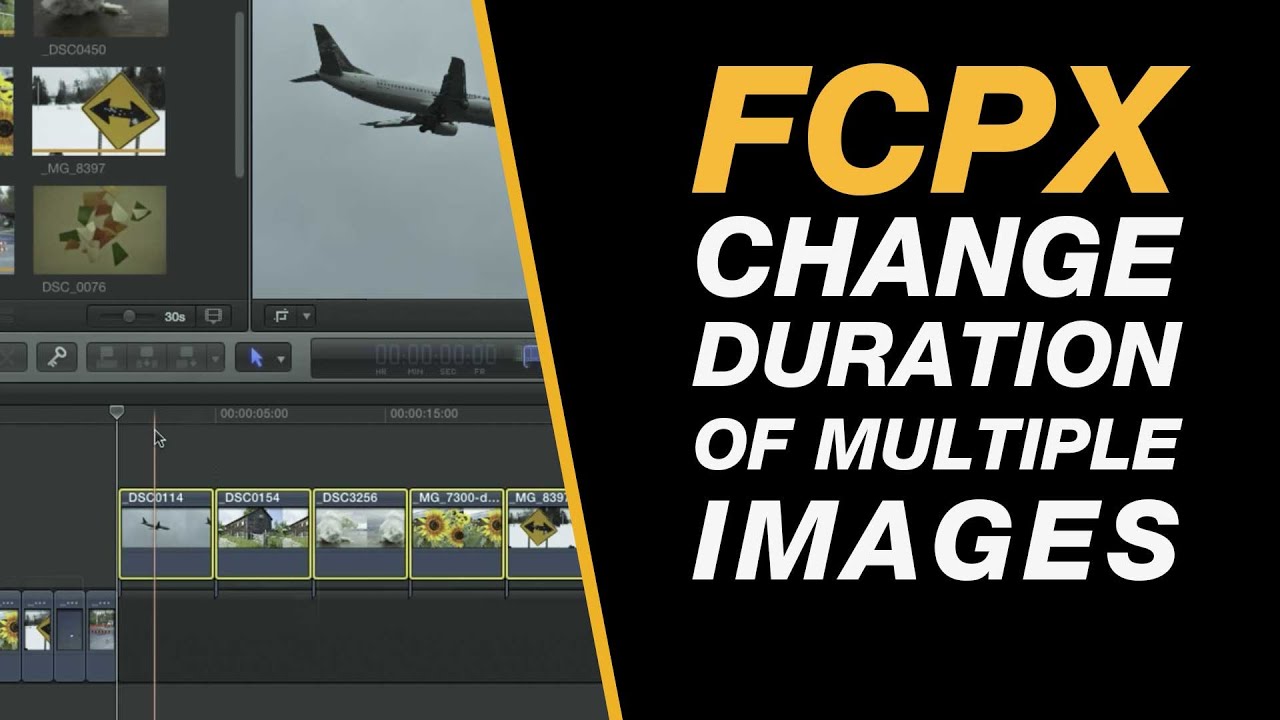
Whether you have 10 image, 100 image or 1000+ images this technique will allow you change the duration of multiple images on the timeline in one go. This is great for getting the timing of a slideshow presentation right without having to individually edit files. We walk through how to do this on the main storyline and on a connected storyline. This question is from Gaasm’s comment on the tutorial Final Cut Pro X: Import an Animated GIF with Transparency .
Step-by-step process – change multiple clip durations
Click anywhere on your timeline
CMD + A which will select all your images (they should all outline in yellow). If you only want to select a few use the SHIFT or CMD modifier and click on the clips that you want to select.
CTRL + D will select the duration option for all the clips you have selected.
Type in 4.00 (4 seconds and 0 frames) or another value for example 2.15 (two seconds and 15 frames) and click enter.
Full Final Cut Pro X Introduction on Skillshare
Looking for my full intro to Final Cut Pro X you can find it here on Skillshare – https://skl.sh/2BTUvhy .
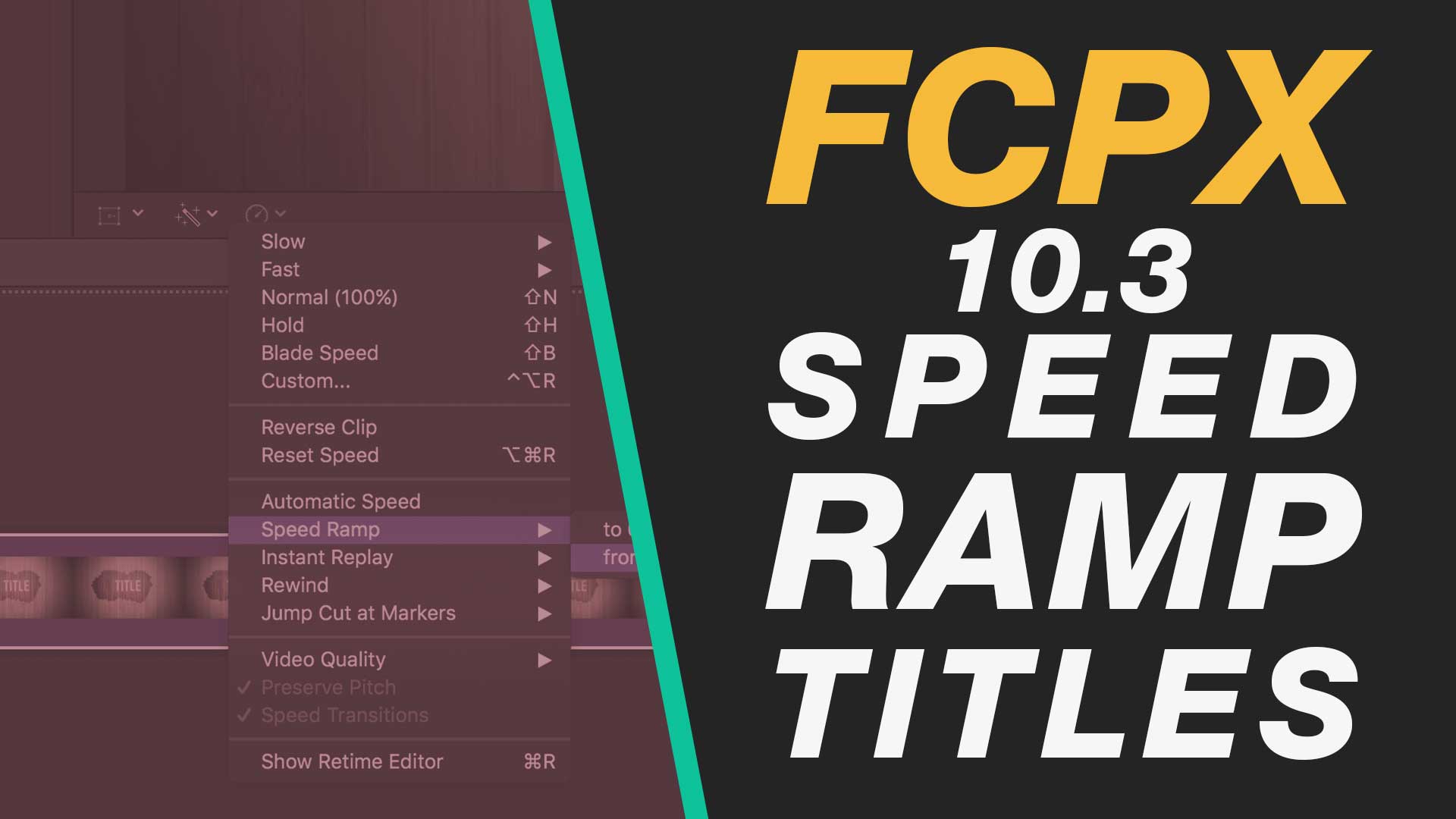
In this easy to follow Final Cut Pro X tutorial you will cover how to make changes to the speed of titles in Final Cut Pro X. This will include advanced speed ramping so that you can get the visual flow of your titles just right.
About My Final Cut Pro X Tutorials
My Final Cut Pro X help tutorials aim to answer the tricky questions that users come across everyday. These are great classes if you want to learn Final Cut Pro X and each lesson or tip will guide you through in easy to follow steps.
If you are a beginner looking for tutorials in Final Cut Pro X take a look at my free introductory lesson “Final Cut Pro X Beginner Tutorial : Import, Edit & Export in 25 Minutes” which will get you started. This basic tutorial gives you a full run through of how to what you need to know in order to edit videos.
About My Live Online Training & In Classroom Training I am a professional trainer of Final Cut Pro X, Adobe Premiere Pro, Adobe Photoshop, Adobe InDesign, Adobe Acrobat Pro & Adobe Illustrator.
I regularly teach classes in Regina and across Saskatchewan as well as running live online workshops. If you’d like to find out more then please drop me a message design@benhalsall.com.
In this easy to follow Final Cut Pro X tutorial you will cover how to make changes to the speed of titles in Final Cut Pro X. This will include advanced speed ramping so that you can get the visual flow of your titles just right.
About My Final Cut Pro X Tutorials
My Final Cut Pro X help tutorials aim to answer the tricky questions that users come across everyday. These are great classes if you want to learn Final Cut Pro X and each lesson or tip will guide you through in easy to follow steps.
If you are a beginner looking for tutorials in Final Cut Pro X take a look at my free introductory lesson “Final Cut Pro X Beginner Tutorial : Import, Edit & Export in 25 Minutes” which will get you started. This basic tutorial gives you a full run through of how to what you need to know in order to edit videos.
About My Live Online Training & In Classroom Training I am a professional trainer of Final Cut Pro X, Adobe Premiere Pro, Adobe Photoshop, Adobe InDesign, Adobe Acrobat Pro & Adobe Illustrator.
I regularly teach classes in Regina and across Saskatchewan as well as running live online workshops. If you’d like to find out more then please drop me a message design@benhalsall.com.
In this Final Cut Pro X tutorial, you will learn how to make refined adjustments to elements on your timeline. This includes refining audio levels, precise adjustments to crop and scale and tips on how to copy changes you’ve made to multiple clips on your timeline including how to copy and paste audio keyframes.
If you have any questions about this or my other Final Cut Pro X videos then just leave a message below in the comments.
In this video:
Introduction – 0:00
Refined Audio Levels Adjustment – 0:39
Adding Keyframes to Dip Audio – 2:13
Refined Adjustment of Scale – 3:34
Copy & Paste Attributes and Keyframes – 6:25
Bonus Tip! – 8:14
Other Recent Videos
Final Cut Pro X Tutorial: Setup a New Project Library – Manage Media & Create Edit Timelines
Final Cut Pro X Tutorial – Mixing Voice & Music Audio Tracks using Keyframes, Selections & Shortcuts
Final Cut Pro X Tutorial: Thug Life Animation Tutorial – Keyframe Animation, Color Effects & More
Final Cut Pro X: Adding Lower Thirds & How to Modify Colour Font & Size
Apple Motion + Final Cut Pro X: Create an Instagram/Facebook Header & Footer Plugin – Title Template
Final Cut Pro X: Emoji Playbar Animation – Keyframing, Adding Emojis & Cropping Shapes
Final Cut Pro X: Cole Bennett / Lil Xan Plasma Ball in the Eye Effect (Step-by-step / No Plugins)
Final Cut Pro X: Put Video Inside a Shape with no Plugins
Final Cut Pro X: Blur Out Areas of your Video in a Still or Moving Image
Final Cut Pro X: Precise Timeline Range Selection in Seconds & Frames
Final Cut Pro X: Slicing Layers with the Blade Tool & Other Chopping Magic
Final Cut Pro X: Good Housekeeping Tips to keep Drive Space Free
Final Cut Pro X Tutorial: Adjust Brightness, Contrast & Color with Professional Control
Hard-Drive Completely Full?
If you are experiencing a hard-drive that is jam-packed to the brim then you may want to check out this video that shows how to clear space without even opening Final Cut Pro X.
Clear Space on Your Hard Drive by Deleting Render & Proxy Files
#FinalCutPro #FCPX #Apple
Full Class on Skillshare
Final Cut Pro X – Complete – from Import to Edit & Export
My Final Cut Pro X help tutorials aim to answer the tricky questions that users come across every day. These are great classes if you want to learn Final Cut Pro X and each lesson or tip will guide you through in easy to follow steps.
If you are a beginner looking for tutorials in Final Cut Pro X take a look at my free introductory lesson “Final Cut Pro X Beginner Tutorial: Import, Edit & Export in 25 Minutes” which will get you started. This basic tutorial gives you a full run through of how to what you need to know in order to edit videos.
About My Live Online Training & In-Classroom Training
I am a professional trainer of Final Cut Pro X, Adobe Premiere Pro, Adobe Photoshop, Adobe InDesign, Adobe Acrobat Pro & Adobe Illustrator.
I regularly teach classes in Regina and across Saskatchewan as well as running live online workshops. If you’d like to find out more then please drop me a message design@benhalsall.com or visit my website www.benhalsall.com.
Thes video tutorials form the foundation for students taking the class and introduce the key concepts and techniques for using Adobe’s professional Non-Linear Editing platform.
01: Intro to Project Setup, Creating a Timeline and Managing Media
02: Importing Clips, Timecode and New Sequence in HD or SD
03: Intro to Timecode, Editing & Shortcuts for a Speedier Workflow
04: Editing Audio, Shuffling Video Clips & Locking Tracks
05: Trimming Clips on the Timeline with Ripple and Roll Edit Tools
Mixing Audio (Voice & Music) Using Keyframes, J Cuts & L Cuts
Hyperlapse Video Technical Tutorial – Change Duration of Multiple Clips & Stabilize
A collection of top tip videos for Final Cut Pro X. Each of these videos shares a short list of tips that are great for beginners or intermediate editors.
Timeline Navigation Tips & Shortcuts for Beginners – Edit Quicker
Setup a New Project Library – Manage Media & Create Edit Timelines
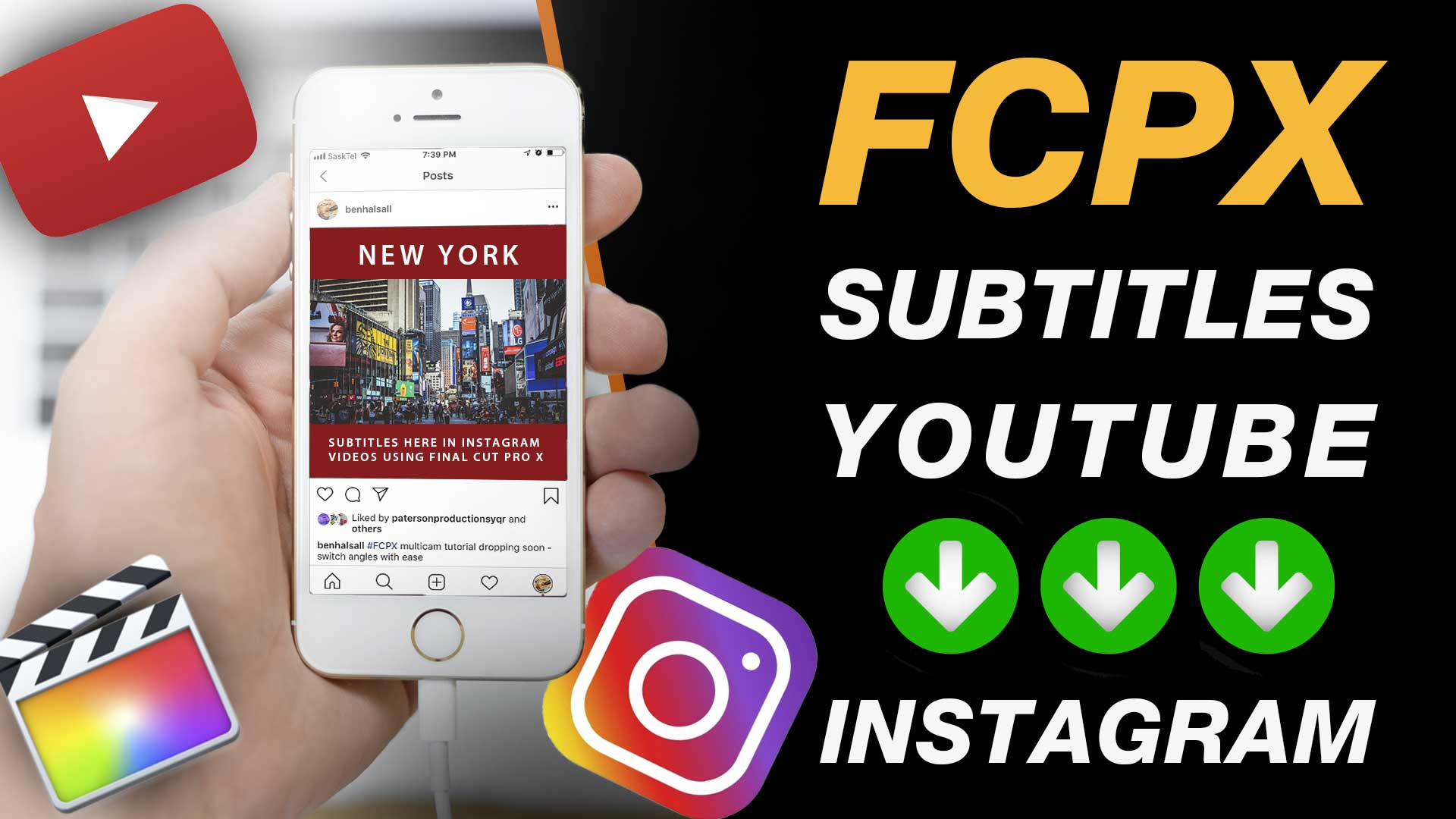
If you want to create subtitles then you can export the automatically generated captions from YouTube and get them onto an edit in Final Cut Pro X. This is great if you want to add customisable subtitles to your video which is really useful when people don’t always have the sound turned on automatically as they watch.
In this easy to follow Final Cut Tutorial, you will be guided through how to do this. Many of my Final Cut Pro X tutorials are from user requests and I’m always happy to receive new requests, questions or suggestions for new videos on my channel.
Other Recent Videos
Setup a New Project Library – Manage Media & Create Edit Timelines
Mixing Voice & Music Audio Tracks using Keyframes, Selections & Shortcuts
Thug Life Animation Tutorial – Keyframe Animation, Color Effects & More
Adding Lower Thirds & How to Modify Colour Font & Size
Create an Instagram/Facebook Header & Footer Plugin – Title Template
Cole Bennett / Lil Xan Plasma Ball in the Eye Effect (Step-by-step / No Plugins)
Put Video Inside a Shape with no Plugins
Blur Out Areas of your Video in a Still or Moving Image
Precise Timeline Range Selection in Seconds & Frames
Slicing Layers with the Blade Tool & Other Chopping Magic
Good Housekeeping Tips to keep Drive Space Free
Adjust Brightness, Contrast & Color with Professional Control
Hard-Drive Completely Full?
If you are experiencing a hard-drive that is jam-packed to the brim then you may want to check out this video that shows how to clear space without even opening Final Cut Pro X.
Clear Space on Your Hard Drive by Deleting Render & Proxy Files
My Final Cut Pro X help tutorials aim to answer the tricky questions that users come across every day. These are great classes if you want to learn Final Cut Pro X and each lesson or tip will guide you through in easy to follow steps.
If you are a beginner looking for tutorials in Final Cut Pro X take a look at my free introductory lesson “Final Cut Pro X Beginner Tutorial: Import, Edit & Export in 25 Minutes” which will get you started. This basic tutorial gives you a full run through of how to what you need to know in order to edit videos.
About My Live Online Training & In-Classroom Training
I am a professional trainer of Final Cut Pro X, Adobe Premiere Pro, Adobe Photoshop, Adobe InDesign, Adobe Acrobat Pro & Adobe Illustrator.
I regularly teach classes in Regina and across Saskatchewan as well as running live online workshops. If you’d like to find out more then please drop me a message design@benhalsall.com .
Below is a collection of videos that use speed changes in different ways for effect. If anyone has any other good ones they can think of then drop me a message and I will add them to the list.
The Pharcyde – Drop (Official Music Video – 1995)
The Mae Shi – Run to Your Grave (2007)
puzzle feet
Nintendo Switch on an Airplane (uses swishpan)
How to Shoot a HYPERLAPSE
skate – shot on red #1347 – 120 fps (2008)
Cloning
Although this example is in Final Cut Pro X the same principle can be applied when shooting footage for use in Premiere Pro.
Learn to Edit using Final Cut Pro
Check out this in-depth tutorial exploring Final Cut Pro‘s key features. Covering everything from downloading free video and audio to organizing footage and precise editing techniques, this guide is a valuable resource for both beginners and those looking to refine their skills. The step-by-step approach includes trimming clips, adding transitions, applying effects like colorization, and incorporating titles. Whether you’re new to video editing or seeking advanced insights, this tutorial provides a comprehensive introduction to Final Cut Pro.
There are a lot of tricks you can use to grab people’s attention when you are posting videos to Instagram, Facebook or other social media platforms. These 5 Final Cut Tutorials will help you to create eye-catching video content that will get those Likes & Shares flowing beautifully!
Love them or hate them square videos can help you to communicate your message by mixing video and type together. Include eye-catching text, web-links or subtitles to grab a viewers attention.
Get those export settings just right when you are posting a video to social media as well as understanding how to move a video from your Mac to your Phone!
Make life easy by creating your own plugin for Final Cut Pro X that will allow you to add type, control colour and most importantly save time. This is a great introduction for those brand new to creating plugins for Final Cut Pro using Apple Motion.
Follow these steps to add Emojis or other Social Media Icons to your video edit in Final Cut Pro. This easy to follow tutorial shows all the steps clearly so you can spice up your videos with some fun content!
Add a progress play-bar quickly and easily to your videos. This tutorial runs through how to add this, easy to create, animation to a video in Final Cut Pro.
In this in-depth beginner Final Cut Tutorial, you will learn how to begin a new piece of work. This includes learning where, and how, Final Cut Pro manages imported media, render files and the best methods for improving your workflow by taking control of your Library setup.
This beginner Final Cut Tutorial is part of a regular series of instructional videos that teach the fundamentals of working with Apple’s professional video editing software. Many of the videos are in response to user comments or questions as well as requests I get in the in-person classes I teach.
If you ever have any questions about Final Cut Pro then please do drop me a message and I hope you enjoy the tutorials.
Other Recent Videos
Mixing Voice & Music Audio Tracks using Keyframes, Selections & Shortcuts
Thug Life Animation Tutorial – Keyframe Animation, Color Effects & More
Create an Instagram/Facebook Header & Footer Plugin – Title Template
Cole Bennett / Lil Xan Plasma Ball in the Eye Effect (Step-by-step / No Plugins)