Adobe InDesign: Essentials – Saskatoon | 8-9 November 2017 #yxe

If you are new to Adobe InDesign then this instructor led two day course is for you. With hands-on lessons you will quickly be up and running and ready to create designs for print and the web. So whether you need to create your own designs from scratch or work with templates designed by other graphic designers this class has it all.

Adobe InDesign: Essentials introduces the key concepts and skills you will need. You will learn to create documents, work effectively with type, design your own layouts, place images and prepare your designs for outputting for print, make PDFs as well as how to output your designs for the web and social media.

So whether you are designing annual reports, flyers, newsletters or need to create designs for your online social media presence on Facebook or Twitter then check out the course outline below.

Ask me anything about Adobe InDesign: Essentials or request a quote.

Find out what people say about working with Ben on the testimonials page.

Course Outline

Lesson 1 – Introduction to the Interface

Lesson 2 – Creating a new project

Lesson 3 – Introduction to working with Graphic, Text & Image objects

Lesson 4 – Formatting Paragraphs & Type

Lesson 5 – Placing Images & Wrapping Text

Lesson 6 – Working with Columns and Multiple Text Frames

Lesson 7 – Paragraph & Character Styles

Lesson 8 – Creating Lists

Lesson 9 – Working with Tables

Lesson 10 – Making Selections, Copying and Pasting Objects

Lesson 11 – Resizing and Rotating Objects

Lesson 12 – Creating Custom Designs

Lesson 13 – Combining, Manipulating & Editing Shapes

Lesson 14 – Groups & Layers

Lesson 15 – Working with Type in Your Designs

Lesson 16 – Creating Clean Layouts and Designs by Using Rulers & Guides

Lesson 17 – Advanced Colour & Gradient Fills

Lesson 18 – Placing Photographic Images Inside Designs

Lesson 19 – Print Essentials – Creating & Preparing Designs for Print Output

Lesson 20 – Preparing and Outputting Images for the Web & Social Media

Lesson 21 – Working with and Creating PDFs

Lesson 22 – Backing Up & Saving Your Projects

Ask Me Anything About Adobe InDesign Essentials

You can send me an e-mail at design@benhalsall.com or use the form below. I look forward to hearing from you.
    Get in touch

    Your Name

    Your Email

    Your Location

    Wherever you are I am happy to provide a quote. I am based in Kelowna but can easily provide a quote for classes across Canada. Over the past few years I have taught in-house classes in Ottawa, Regina, Vancouver, Calgary & Montréal.

    Your Phone Number

    Often its quicker to answer your questions about training & other projects over the phone.

    What would you like to ask me about?

    Sign up to for course info & schedule.

    Your Message

    Adobe InDesign: Essentials – Saskatoon | 8-9 November 2017 #yxe

    If you are new to Adobe InDesign then this instructor led two day course is for you. With hands-on lessons you will quickly be up and running and ready to create designs for print and the web. So whether you need to create your own designs from scratch or work with templates designed by other graphic designers this class has it all.

    Adobe InDesign: Essentials introduces the key concepts and skills you will need. You will learn to create documents, work effectively with type, design your own layouts, place images and prepare your designs for outputting for print, make PDFs as well as how to output your designs for the web and social media.

    So whether you are designing annual reports, flyers, newsletters or need to create designs for your online social media presence on Facebook or Twitter then check out the course outline below.

    Ask me anything about Adobe InDesign: Essentials or request a quote.

    Find out what people say about working with Ben on the testimonials page.

    Course Outline

    Lesson 1 – Introduction to the Interface

    Lesson 2 – Creating a new project

    Lesson 3 – Introduction to working with Graphic, Text & Image objects

    Lesson 4 – Formatting Paragraphs & Type

    Lesson 5 – Placing Images & Wrapping Text

    Lesson 6 – Working with Columns and Multiple Text Frames

    Lesson 7 – Paragraph & Character Styles

    Lesson 8 – Creating Lists

    Lesson 9 – Working with Tables

    Lesson 10 – Making Selections, Copying and Pasting Objects

    Lesson 11 – Resizing and Rotating Objects

    Lesson 12 – Creating Custom Designs

    Lesson 13 – Combining, Manipulating & Editing Shapes

    Lesson 14 – Groups & Layers

    Lesson 15 – Working with Type in Your Designs

    Lesson 16 – Creating Clean Layouts and Designs by Using Rulers & Guides

    Lesson 17 – Advanced Colour & Gradient Fills

    Lesson 18 – Placing Photographic Images Inside Designs

    Lesson 19 – Print Essentials – Creating & Preparing Designs for Print Output

    Lesson 20 – Preparing and Outputting Images for the Web & Social Media

    Lesson 21 – Working with and Creating PDFs

    Lesson 22 – Backing Up & Saving Your Projects

    Ask Me Anything About Adobe InDesign Essentials

    You can send me an e-mail at design@benhalsall.com or use the form below. I look forward to hearing from you.
      Get in touch

      Your Name

      Your Email

      Your Location

      Wherever you are I am happy to provide a quote. I am based in Kelowna but can easily provide a quote for classes across Canada. Over the past few years I have taught in-house classes in Ottawa, Regina, Vancouver, Calgary & Montréal.

      Your Phone Number

      Often its quicker to answer your questions about training & other projects over the phone.

      What would you like to ask me about?

      Sign up to for course info & schedule.

      Your Message

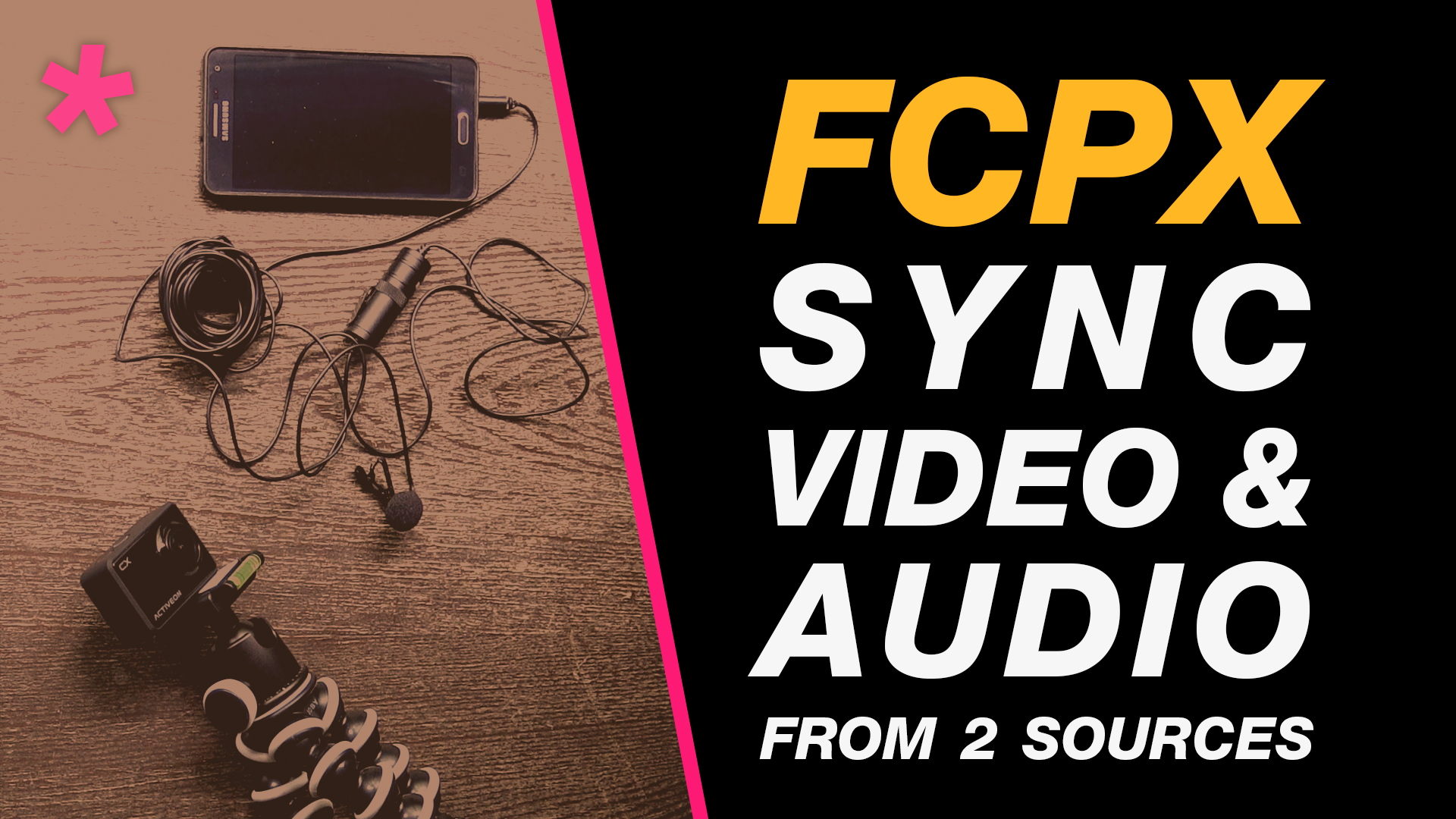
      Final Cut Pro X: Audio & Video Sync Tutorial for Beginners Learning to Edit

      In this quick tutorial I will show you how to synchronise a video and audio clip in Final Cut Pro X. This will begin with the equipment used to create the two recordings as well as how to use them in your edit.

      – – – – – – – – – – – – – – – – – – – – – – – – – – – – – – – – – – – – – – – – – – – – – – – – – – – – – – –

      Equipment I am using in this video:
      Boya By-M1 Lavalier Microphone – https://goo.gl/8mNGi1
      Joby GP2-D1EN GorillaPod – https://goo.gl/WGzU5x
      Activeon CX Action Camera – https://goo.gl/t6OlhW

      I edit with:
      Apple iMac 27-Inch Retina 5K Desktop – http://amzn.to/2t1Nsf7

      – – – – – – – – – – – – – – – – – – – – – – – – – – – – – – – – – – – – – – – – – – – – – – – – – – – – – – –

      About My Final Cut Pro X Tutorials
      My Final Cut Pro X help tutorials aim to answer the tricky questions that users come across everyday. These are great classes if you want to learn Final Cut Pro X and each lesson or tip will guide you through in easy to follow steps.

      If you are a beginner looking for tutorials in Final Cut Pro X take a look at my free introductory lesson “Final Cut Pro X Beginner Tutorial : Import, Edit & Export in 25 Minutes” which will get you started. This basic tutorial gives you a full run through of how to what you need to know in order to edit videos.

      – – – – – – – – – – – – – – – – – – – – – – – – – – – – – – – – – – – – – – – – – – – – – – – – – – – – – – –

      About My Live Online Training & In Classroom Training
      I am a professional trainer of Final Cut Pro X, Adobe Premiere Pro, Adobe Photoshop, Adobe InDesign, Adobe Acrobat Pro & Adobe Illustrator.

      I regularly teach classes in Regina and across Saskatchewan as well as running live online workshops. If you’d like to find out more then please drop me a message design@benhalsall.com or visit my web-site www.benhalsall.com .

      – – – – – – – – – – – – – – – – – – – – – – – – – – – – – – – – – – – – – – – – – – – – – – – – – – – – – – –

      Tags:
      Make speed changes in Final Cut Pro X, Speed up Titles, Using Markers in Final Cut Pro X, Working with Markers, Final Cut Pro X tutorial, Final Cut Pro X Beginner Tutorial, Chapter Markers in FCPX, Ways to view audio clips – Apple FCPX, Adjust Timeline Settings – Waveforms – FCPX, Waveform Size in Timeline, Audio Editing in Final Cut Pro X, View Audio Waveform in Final Cut Pro X, View Waveform in FCPX,size of audio waveforms, Removing Lens Dirt & Dust, Dust Spot Removal in Final Cut Pro X, Fix Camera Spot, Garbage Matte Tutorial, Remove Dust and Dirt form Camera Shot, Connected Clips Tutorial, Layers tutorial for Final Cut Pro X, Mange Your Timeline in Final Cut Pro X, Connected Clips in Final Cut Pro X, Final Cut Pro X Beginner Tutorial, Beginner Lesson for Final Cut Pro X, Learn Final Cut Pro X for Beginners, Final Cut Pro X: An Beginner’s Introduction, The Beginners Guide to Learning FCPX | Ben Halsall, Final Cut Pro – Basics Training – Ben Halsall, Final Cut Pro X Essentials, Final Cut Pro X 101, fcpx tutorials for beginners, final cut pro beginner, final cut 7 tutorial beginner, final cut pro 7 tutorial beginner,fcpx tutorial free download,youtube final cut ben halsall, final cut pro basics, final cut pro basics 2015,final cut pro basics 2016,final cut pro basics 2017,final cut pro basics 2018,final cut pro basics 2019, final cut pro basics 2020,fcpx basics, final cut pro video tutorials,fcpx tutorial free download,final cut pro tutorial youtube,final cut pro 10 basics,how to use final cut pro 10,fcp 10 basic tutorial,fcpx tutorial pdf, final cut pro tutorials for beginners,final cut pro 7 basics,final cut pro 10 export,final cut pro 10 for windows,final cut pro 10 free download,final cut pro 7 tutorial beginner,youtube final cut pink floyd,final cut pro basics 2015, final cut pro intro, final cut pro x intro, final cut pro introduction, final cut pro x introduction, freeze frames in final cut pro x, speed change, speed ramp, working with titles, smart type overlays, overlay type in final cut pro x, overlay type using smart colour adjustment, split screen in final cut pro x, create split screen, copy and paste attributes, sync audio and video, sync two tracks in fcpx, synchronise in Final Cut Pro,

      Final Cut Pro X Tutorial: Export Video with Transparency and Re-Import it to the Timeline #fcpx #videoediting #lax #nyc #lcy

      Need to export video or graphics that keeps a transparent background intact.

      This tutorial gives a practical run through of how this works and discusses where it might be useful.

      We also look at re-importing it to the timeline.

      – – – – – – – – – – – – – – – – – – – – – – – – – – – – – – – – – – – – – – – – – – – – – – – – – – – – – – –

      The camera I shot the timelapse with is:
      Canon XA20 Video Camera – http://amzn.to/2sFeoES

      I edit with:
      Apple iMac 27-Inch Retina 5K Desktop – http://amzn.to/2t1Nsf7

      – – – – – – – – – – – – – – – – – – – – – – – – – – – – – – – – – – – – – – – – – – – – – – – – – – – – – – –

      About My Final Cut Pro X Tutorials
      My Final Cut Pro X help tutorials aim to answer the tricky questions that users come across everyday. These are great classes if you want to learn Final Cut Pro X and each lesson or tip will guide you through in easy to follow steps.

      If you are a beginner looking for tutorials in Final Cut Pro X take a look at my free introductory lesson “Final Cut Pro X Beginner Tutorial : Import, Edit & Export in 25 Minutes” which will get you started. This basic tutorial gives you a full run through of how to what you need to know in order to edit videos.

      – – – – – – – – – – – – – – – – – – – – – – – – – – – – – – – – – – – – – – – – – – – – – – – – – – – – – – –

      About My Live Online Training & In Classroom Training
      I am a professional trainer of Final Cut Pro X, Adobe Premiere Pro, Adobe Photoshop, Adobe InDesign, Adobe Acrobat Pro & Adobe Illustrator.

      I regularly teach classes in Regina and across Saskatchewan as well as running live online workshops. If you’d like to find out more then please drop me a message design@benhalsall.com or visit my web-site www.benhalsall.com .

      – – – – – – – – – – – – – – – – – – – – – – – – – – – – – – – – – – – – – – – – – – – – – – – – – – – – – – –

      Tags:
      Make speed changes in Final Cut Pro X, Speed up Titles, Using Markers in Final Cut Pro X, Working with Markers, Final Cut Pro X tutorial, Final Cut Pro X Beginner Tutorial, Chapter Markers in FCPX, Ways to view audio clips – Apple FCPX, Adjust Timeline Settings – Waveforms – FCPX, Waveform Size in Timeline, Audio Editing in Final Cut Pro X, View Audio Waveform in Final Cut Pro X, View Waveform in FCPX,size of audio waveforms, Removing Lens Dirt & Dust, Dust Spot Removal in Final Cut Pro X, Fix Camera Spot, Garbage Matte Tutorial, Remove Dust and Dirt form Camera Shot, Connected Clips Tutorial, Layers tutorial for Final Cut Pro X, Mange Your Timeline in Final Cut Pro X, Connected Clips in Final Cut Pro X, Final Cut Pro X Beginner Tutorial, Beginner Lesson for Final Cut Pro X, Learn Final Cut Pro X for Beginners, Final Cut Pro X: An Beginner’s Introduction, The Beginners Guide to Learning FCPX | Ben Halsall, Final Cut Pro – Basics Training – Ben Halsall, Final Cut Pro X Essentials, Final Cut Pro X 101, fcpx tutorials for beginners, final cut pro beginner, final cut 7 tutorial beginner, final cut pro 7 tutorial beginner,fcpx tutorial free download,youtube final cut ben halsall, final cut pro basics, final cut pro basics 2015,final cut pro basics 2016,final cut pro basics 2017,final cut pro basics 2018,final cut pro basics 2019, final cut pro basics 2020,fcpx basics, final cut pro video tutorials,fcpx tutorial free download,final cut pro tutorial youtube,final cut pro 10 basics,how to use final cut pro 10,fcp 10 basic tutorial,fcpx tutorial pdf, final cut pro tutorials for beginners,final cut pro 7 basics,final cut pro 10 export,final cut pro 10 for windows,final cut pro 10 free download,final cut pro 7 tutorial beginner,youtube final cut pink floyd,final cut pro basics 2015, final cut pro intro, final cut pro x intro, final cut pro introduction, final cut pro x introduction, freeze frames in final cut pro x, speed change, speed ramp, working with titles, smart type overlays, overlay type in final cut pro x, overlay type using smart colour adjustment, split screen in final cut pro x, create split screen, copy and paste attributes, stop motion animation, timelapse animation, frame duration in final cut pro x, change frame duration in final cut pro x, final cut pro x beginner tutorial, add effects in final cut pro x, export with transparent background in final cut pro x, transparency in final cut pro x, export transparent video in final cut pro,

      Get the Most from Your Mac – Learn the Essential Skills, Software & Tips | July 21 2017 – Regina, SK

      If you are new to Mac OS X or are looking for in depth instruction for getting the most out of your Apple Mac then this is the class for you.

      The focus of this class is to build your familiarity with the Apple Mac system so that you can move more freely around the desktop, between applications and learn about the default applications that are installed when you get your new Apple Mac.

      The classes I teach are for individuals or small groups and can be customised to fit individual or group requirements.

      Class Recording
      Each class I teach comes with a full recording that will be uploaded and shared with the participants online after class. This is a great resource for recapping in detail on what was covered and will include answers to any questions that were asked in class.

      What is Covered
      Here is an outline of some of the apps that will be covered.

      • Intro to the Interface
      • Navigating the Desktop
      • Ben’s Top 10 Shortcuts
      • Setting Up Users
      • Overview of Build-in-Software
      • iTunes
      • FaceTime & Messages
      • TextEdit
      • Apple Mail – Setup & Tips
      • Safari – Browsing the Web
      • Calendar – Setting Up Calendars
      • Photo Booth
      • Quicktime
      • Photos & iPhoto
      • GarageBand
      • Creating PDFs & Preview
      • Notes
      • iMovie Overview
      • Pages
      • Keynote
      • Smart Password Management

      Class Location

      This course can be delivered in-house, online or a venue can be arranged that works for your business.

      I am primarily based in Regina, Saskatchewan but am able to deliver courses anywhere across Canada.

      Request a course, location & dates >>

      Ask Me Anything About this Class

      You can send me an e-mail at design@benhalsall.com or use the form below. I look forward to hearing from you.
        Get in touch

        Your Name

        Your Email

        Your Location

        Wherever you are I am happy to provide a quote. I am based in Kelowna but can easily provide a quote for classes across Canada. Over the past few years I have taught in-house classes in Ottawa, Regina, Vancouver, Calgary & Montréal.

        Your Phone Number

        Often its quicker to answer your questions about training & other projects over the phone.

        What would you like to ask me about?

        Sign up to for course info & schedule.

        Your Message

        Final Cut Pro X – The Essentials in Calgary | Alberta | 15-17 November 2017 #fcpx #YYC

        Get started with Final Cut Pro X with this awesome three day course taught by Ben Halsall.

        Ben has over 15 years of experience editing and teaching Final Cut Pro. He works as a professional videographer & editor, taught BA (Hons) Broadcast Media Technologies in Leeds, UK and now lives and works in Canada where he also teaches part-time courses in video production and editing.

        Final Cut Pro X – The Essentials covers everything you will need. From the basic interface, editing and timeline management, working with audio to creating a split screen the topics covered will help you on your way to getting the very best out of your video projects.

        So whether you are looking to improve your editing skills, add some class to your YouTube channel or want to add Final Cut Pro X to your skills in Adobe Premiere Pro or Avid this hands-on training course will fit your needs.

        Take a look at the course outline below for more information and get in touch if you have any questions.

        Course Outline

        Getting Started
        Introduction & Tour of The Interface
        Setting Up Your Project – Libraries, Events & the Browser
        Importing Video, Images & Audio

        Editing – An Introduction
        Marking Clips – selecting areas of your clips to use in an edit
        Editing – Drag and drop editing
        Editing Shortcuts – Speed Up Your Editing

        Adjusting Your Edit
        Split your clips on the timeline
        Trim & Refine Your Clips On The Timeline
        Move & Shuffle Clips on The Timeline

        Refining Your Edit
        Add transitions and fades to black
        Adding Cutaways & Working With Video Layers

        Sound
        Adding Audio Layers
        Creating Audio Crossfades
        Managing Audio Levels
        Adding Sound Effects

        Essential Effects
        Adding Effects
        Colour Adjustments – The Basics Of Colour Grading
        Split Screen – create a split screen using cropping & rescale
        Retime – Speed Up and Slow Down Clips on The Timeline

        Text & Graphics
        Adding Titles To Your Edit
        Add Lower Thirds
        Add Shapes & Graphics
        Importing Images & PDFs
        Create Scrolling Credits (Credit Rolls)

        Customising Your Project
        Custom Project Setup – Control Resolution and Framerate
        Rescale a Projects Resolution

        Editing Tips & Tricks
        Using J or L Cuts To Avoid Jump Cuts
        Export Your Video To YouTube or Vimeo
        Export A High Quality Video

        Compositing & Effects
        Image Transparency & Animation
        From Photoshop to Final Cut – How to Animate Your Photoshop Layers
        Stabilise Your Video Footage
        Make Your Video Black & White or Add A Color Tint

        Backing Up & Technical Considerations
        Essential File Management Considerations with Video
        Backing Up – Back up and Move a Project to an External Drive
        Improving Your System To Work With Video

        Need in-house training or a different location?

        This course can be delivered in-house, online or a venue can be arranged that works for your business.

        I am primarily based in Regina, Saskatchewan but am able to deliver courses anywhere across Canada.

        Ask Me Anything About Final Cut Pro X – The Essentials

        You can send me an e-mail at design@benhalsall.com or use the form below. I look forward to hearing from you.
          Get in touch

          Your Name

          Your Email

          Your Location

          Wherever you are I am happy to provide a quote. I am based in Kelowna but can easily provide a quote for classes across Canada. Over the past few years I have taught in-house classes in Ottawa, Regina, Vancouver, Calgary & Montréal.

          Your Phone Number

          Often its quicker to answer your questions about training & other projects over the phone.

          What would you like to ask me about?

          Sign up to for course info & schedule.

          Your Message

          Final Cut Pro X: Design YouTube Thumbnails in FCPX Tutorial Class #fcpx #nyc #lax #lhr #yvr

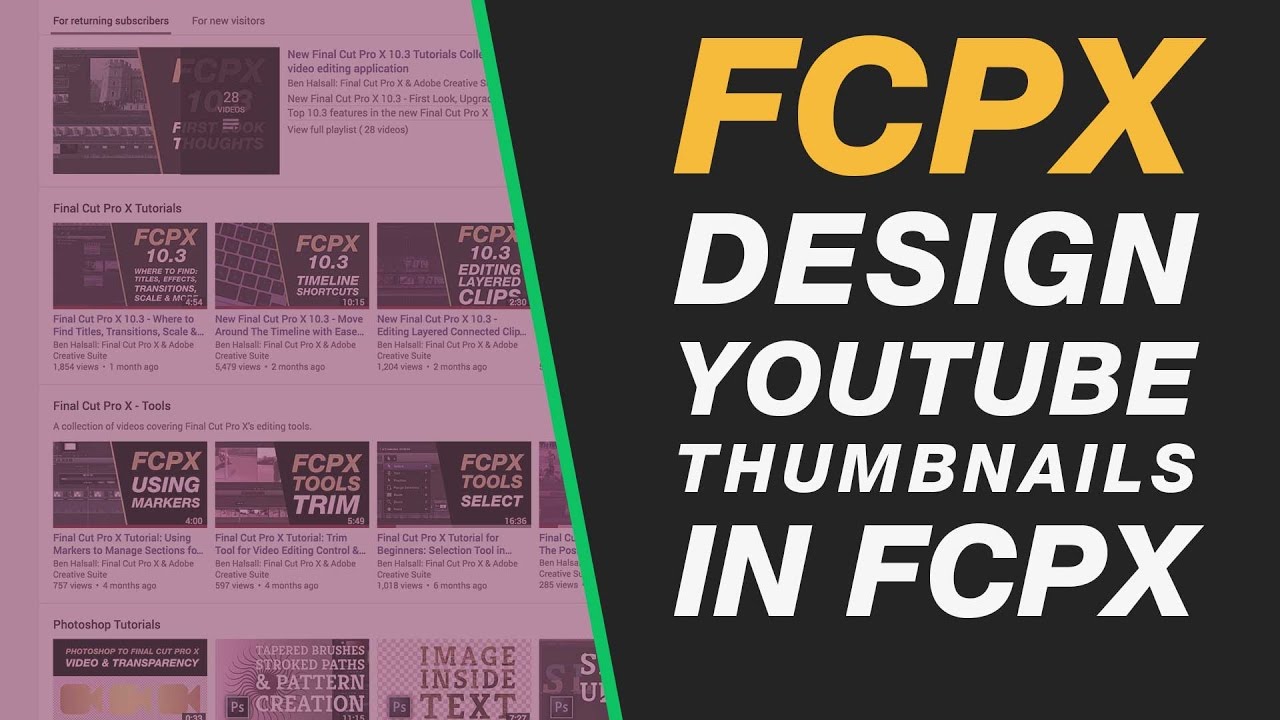
          Learn how to design YouTube thumbnails in Final Cut Pro. You will learn how to add and edit text, adjust image colour and export out a still image that you can upload directly to YouTube.

          If you like what you see, and feel like it, support me on Patreon: https://www.patreon.com/benhalsall it means a lot and makes a big difference!

          – – – – – – – – – – – – – – – – – – – – – – – – – – – – – – – – – – – – – – – – – – – – – – – – – – – – – – –

          About My Final Cut Pro X Tutorials
          My Final Cut Pro X help tutorials aim to answer the tricky questions that users come across everyday. These are great classes if you want to learn Final Cut Pro X and each lesson or tip will guide you through in easy to follow steps.

          If you are a beginner looking for tutorials in Final Cut Pro X take a look at my free introductory lesson “Final Cut Pro X Beginner Tutorial : Import, Edit & Export in 25 Minutes” which will get you started. This basic tutorial gives you a full run through of how to what you need to know in order to edit videos.

          – – – – – – – – – – – – – – – – – – – – – – – – – – – – – – – – – – – – – – – – – – – – – – – – – – – – – – –

          About My Live Online Training & In Classroom Training
          I am a professional trainer of Final Cut Pro X, Adobe Premiere Pro, Adobe Photoshop, Adobe InDesign, Adobe Acrobat Pro & Adobe Illustrator.

          I regularly teach classes in Regina and across Saskatchewan as well as running live online workshops. If you’d like to find out more then please drop me a message design@benhalsall.com or visit my web-site www.benhalsall.com .

          – – – – – – – – – – – – – – – – – – – – – – – – – – – – – – – – – – – – – – – – – – – – – – – – – – – – – – –
          – – – – – – – – – – – – – – – – – – – – – – – – – – – – – – – – – – – – – – – – – – – – – – – – – – – – – – –

          Tags:
          Using Markers in Final Cut Pro X, Working with Markers, Final Cut Pro X tutorial, Final Cut Pro X Beginner Tutorial, Chapter Markers in FCPX, Ways to view audio clips – Apple FCPX, Adjust Timeline Settings – Waveforms – FCPX, Waveform Size in Timeline, Audio Editing in Final Cut Pro X, View Audio Waveform in Final Cut Pro X, View Waveform in FCPX,size of audio waveforms, Removing Lens Dirt & Dust, Dust Spot Removal in Final Cut Pro X, Fix Camera Spot, Garbage Matte Tutorial, Remove Dust and Dirt form Camera Shot, Connected Clips Tutorial, Layers tutorial for Final Cut Pro X, Mange Your Timeline in Final Cut Pro X, Connected Clips in Final Cut Pro X, Final Cut Pro X Beginner Tutorial, Beginner Lesson for Final Cut Pro X, Learn Final Cut Pro X for Beginners, Final Cut Pro X: An Beginner’s Introduction, The Beginners Guide to Learning FCPX | Ben Halsall, Final Cut Pro – Basics Training – Ben Halsall, Final Cut Pro X Essentials, Final Cut Pro X 101, fcpx tutorials for beginners, final cut pro beginner, final cut 7 tutorial beginner, final cut pro 7 tutorial beginner,fcpx tutorial free download,youtube final cut ben halsall, final cut pro basics, final cut pro basics 2015,final cut pro basics 2016,final cut pro basics 2017,final cut pro basics 2018,final cut pro basics 2019, final cut pro basics 2020,fcpx basics, final cut pro video tutorials,fcpx tutorial free download,final cut pro tutorial youtube,final cut pro 10 basics,how to use final cut pro 10,fcp 10 basic tutorial,fcpx tutorial pdf, final cut pro tutorials for beginners,final cut pro 7 basics,final cut pro 10 export,final cut pro 10 for windows,final cut pro 10 free download,final cut pro 7 tutorial beginner,youtube final cut pink floyd,final cut pro basics 2015, final cut pro intro, final cut pro x intro, final cut pro introduction, final cut pro x introduction

          Final Cut Pro X Tutorial: Custom Animated Type Reveal Beginner Class

          In this Final Cut Pro X beginner tutorial learn how to create a customised type reveal animation. This is a great way to add life to your titles as well as to get 100% control over the timing of your type.

          Learn how to use the Draw Mask tool to great effect in this tutorial.

          – – – – – – – – – – – – – – – – – – – – – – – – – – – – – – – – – – – – – – – – – – – – – – – – – – – – – – –

          About My Final Cut Pro X Tutorials
          My Final Cut Pro X help tutorials aim to answer the tricky questions that users come across everyday. These are great classes if you want to learn Final Cut Pro X and each lesson or tip will guide you through in easy to follow steps.

          If you are a beginner looking for tutorials in Final Cut Pro X take a look at my free introductory lesson “Final Cut Pro X Beginner Tutorial : Import, Edit & Export in 25 Minutes” which will get you started. This basic tutorial gives you a full run through of how to what you need to know in order to edit videos.

          – – – – – – – – – – – – – – – – – – – – – – – – – – – – – – – – – – – – – – – – – – – – – – – – – – – – – – –

          About My Live Online Training & In Classroom Training
          I am a professional trainer of Final Cut Pro X, Adobe Premiere Pro, Adobe Photoshop, Adobe InDesign, Adobe Acrobat Pro & Adobe Illustrator.

          I regularly teach classes in Regina and across Saskatchewan as well as running live online workshops. If you’d like to find out more then please drop me a message design@benhalsall.com or visit my web-site www.benhalsall.com .

          – – – – – – – – – – – – – – – – – – – – – – – – – – – – – – – – – – – – – – – – – – – – – – – – – – – – – – –
          – – – – – – – – – – – – – – – – – – – – – – – – – – – – – – – – – – – – – – – – – – – – – – – – – – – – – – –

          Tags:
          Make speed changes in Final Cut Pro X, Speed up Titles, Using Markers in Final Cut Pro X, Working with Markers, Final Cut Pro X tutorial, Final Cut Pro X Beginner Tutorial, Chapter Markers in FCPX, Ways to view audio clips – Apple FCPX, Adjust Timeline Settings – Waveforms – FCPX, Waveform Size in Timeline, Audio Editing in Final Cut Pro X, View Audio Waveform in Final Cut Pro X, View Waveform in FCPX,size of audio waveforms, Removing Lens Dirt & Dust, Dust Spot Removal in Final Cut Pro X, Fix Camera Spot, Garbage Matte Tutorial, Remove Dust and Dirt form Camera Shot, Connected Clips Tutorial, Layers tutorial for Final Cut Pro X, Mange Your Timeline in Final Cut Pro X, Connected Clips in Final Cut Pro X, Final Cut Pro X Beginner Tutorial, Beginner Lesson for Final Cut Pro X, Learn Final Cut Pro X for Beginners, Final Cut Pro X: An Beginner’s Introduction, The Beginners Guide to Learning FCPX | Ben Halsall, Final Cut Pro – Basics Training – Ben Halsall, Final Cut Pro X Essentials, Final Cut Pro X 101, fcpx tutorials for beginners, final cut pro beginner, final cut 7 tutorial beginner, final cut pro 7 tutorial beginner,fcpx tutorial free download,youtube final cut ben halsall, final cut pro basics, final cut pro basics 2015,final cut pro basics 2016,final cut pro basics 2017,final cut pro basics 2018,final cut pro basics 2019, final cut pro basics 2020,fcpx basics, final cut pro video tutorials,fcpx tutorial free download,final cut pro tutorial youtube,final cut pro 10 basics,how to use final cut pro 10,fcp 10 basic tutorial,fcpx tutorial pdf, final cut pro tutorials for beginners,final cut pro 7 basics,final cut pro 10 export,final cut pro 10 for windows,final cut pro 10 free download,final cut pro 7 tutorial beginner,youtube final cut pink floyd,final cut pro basics 2015, final cut pro intro, final cut pro x intro, final cut pro introduction, final cut pro x introduction, freeze frames in final cut pro x, speed change, speed ramp, working with titles, smart type overlays, overlay type in final cut pro x, overlay type using smart colour adjustment, split screen in final cut pro x, create split screen, copy and paste attributes, draw mask tool in final cut pro x, draw mask animation, fcpx type animation, fcpx text animation, final cut pro x type tutorial, final cut pro type beginner class, animated type reveal fcpx

          Final Cut Pro X Tutorial: Build on Type Animation using Keyframes

          Effects are great but there is nothing like using keyframes to make sure you get your timing spot on. The flexibility and control that Final Cut Pro X offers with keyframes for different aspects of your clips, type or generated objects is awesome. This tutorial focuses on a simple type animation that can be used to build on a simple phrase or title.

          The tips and tricks covered in this tutorial are invaluable in lots of different aspects of Final Cut Pro X including:
          – Keyframing Animation
          – Working with Compound Clips (grouping clips)
          – Adding Transitions
          – Keyframing Effects

          A list of all my Adobe InDesign classes on @skillshare #training #yqr

          Below is a list of my other Adobe InDesign classes on Skillshare:

          Photoshop to InDesign: Creating Image Masks for Text Wraps

          Adobe InDesign: Introduction to Shape, Image & Text Objects in-depth

          InDesign: Placing Images, Scaling Images, Controlling Resolution & Rotating Images

          InDesign: Create Custom Image Frames with Shapes, Type & The Pathfinder in this Graphic Design Class

          InDesign: Create a Trifold Flyer

          InDesign: Create Text Columns with Titles and Quotes that Span Them

          InDesign: Table Styles & Scripts

          InDesign: Create a Custom Newsletter Layout

          InDesign: Tips for Customising Perfect Lists

          InDesign: Save Time by Using Nested Paragraph Styles – Gallery Labels